How to connect Google Workspace mail
Forward your Google support mailbox to GoTenix once and its mail becomes tickets, then add an app password so replies and invoices go out through Google from the same mailbox.
See it
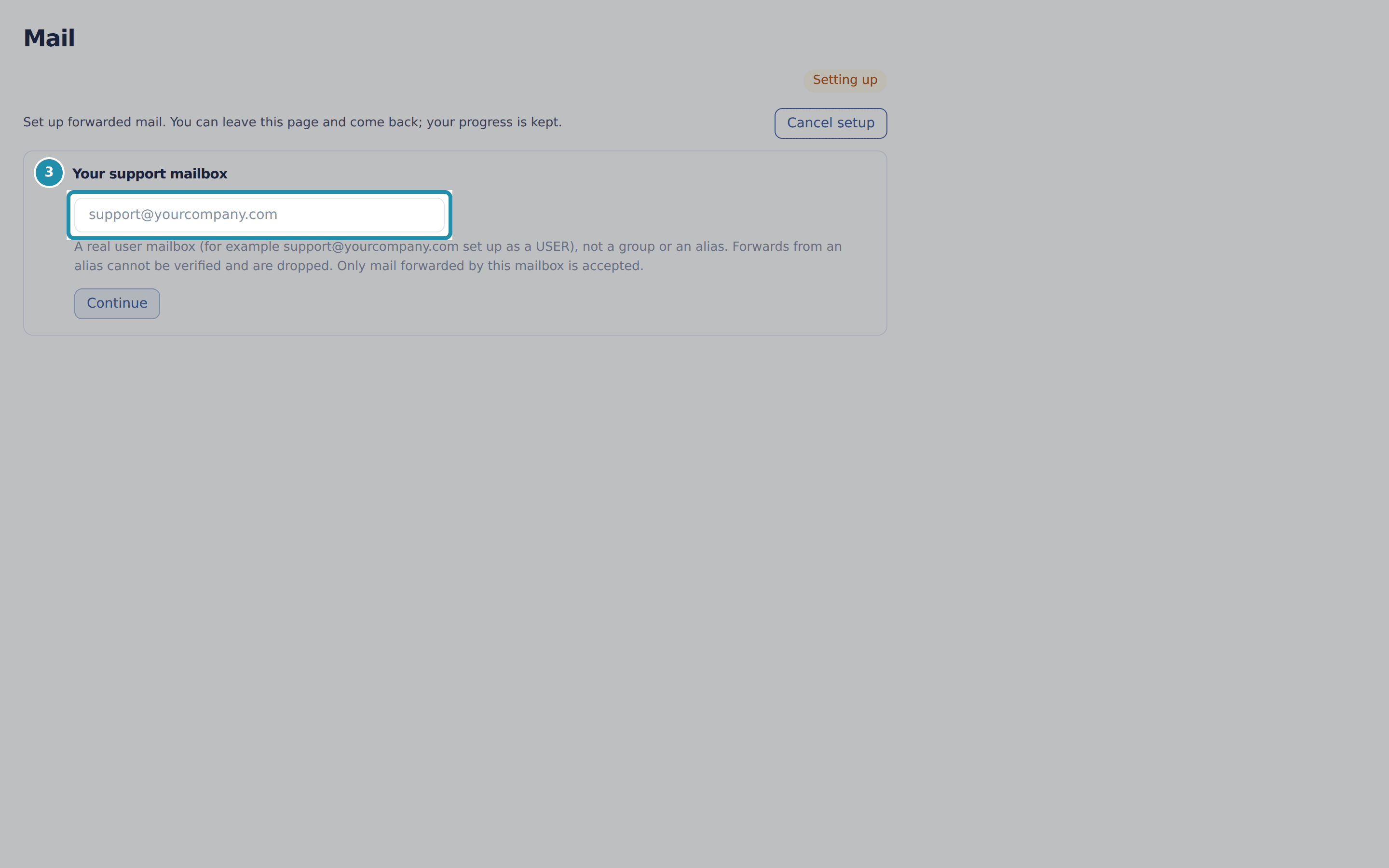 3. In step 1, Your support mailbox, type the address people write to for support.
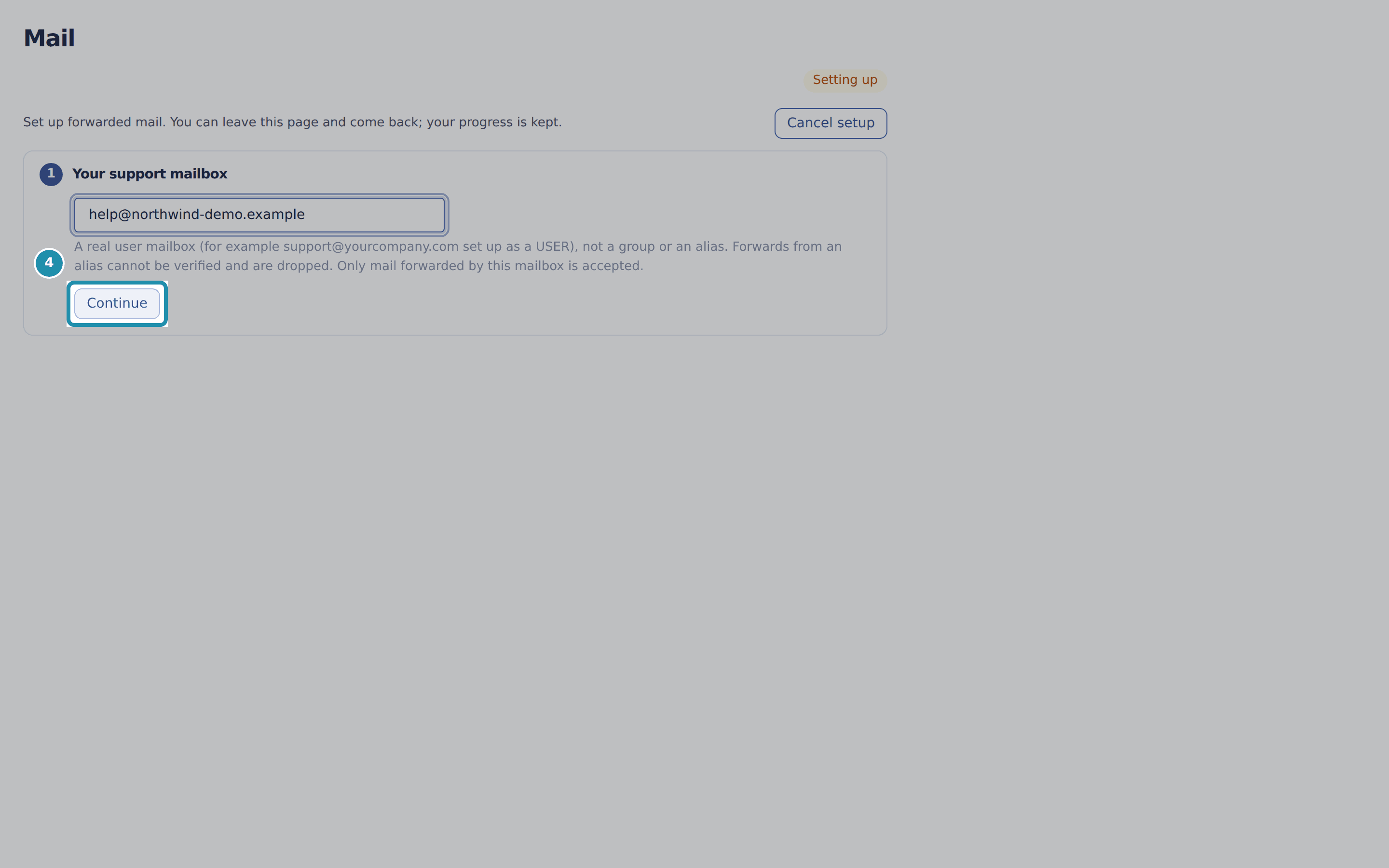 4. Click Continue.
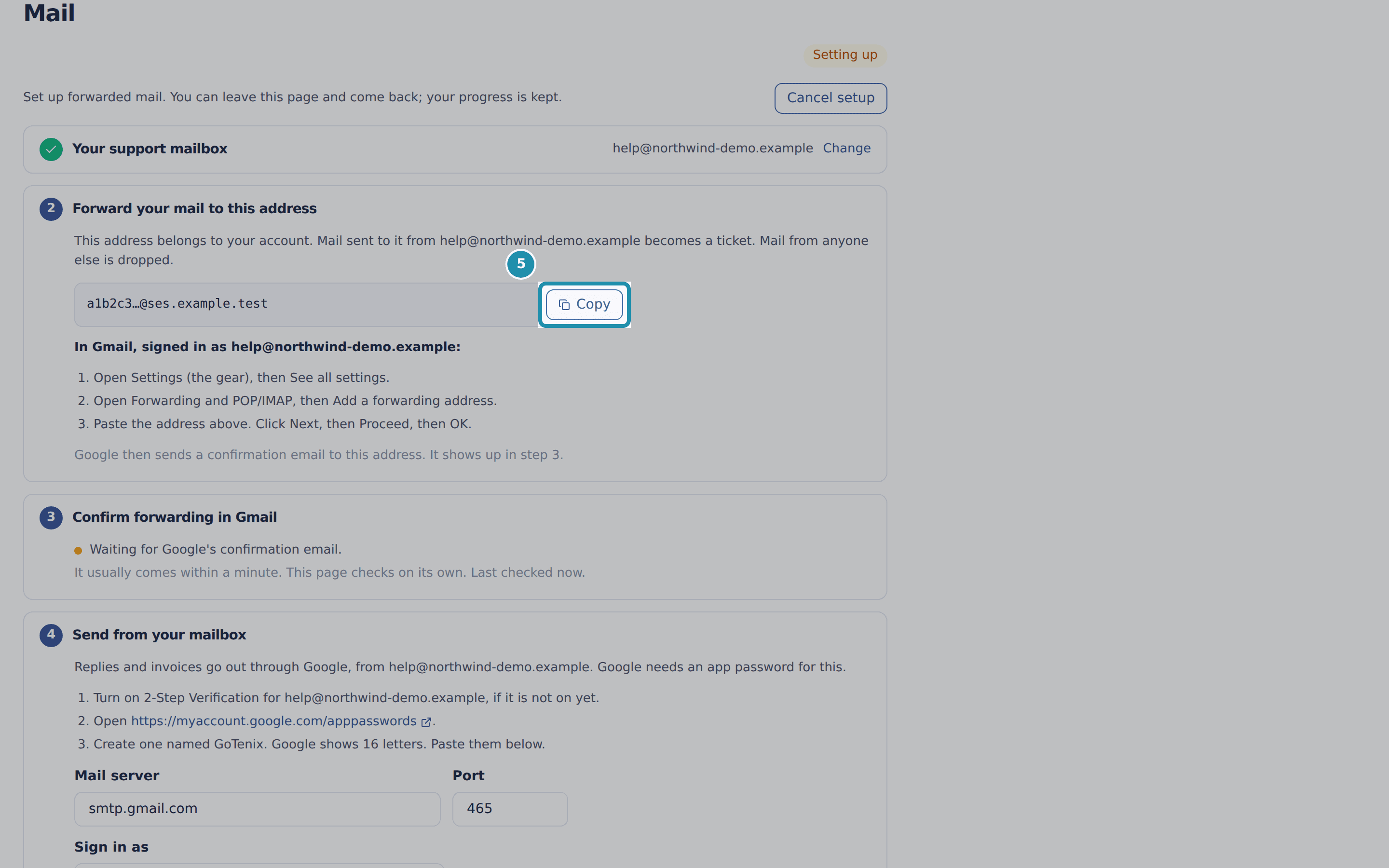 5. In step 2, click Copy beside the forwarding address.
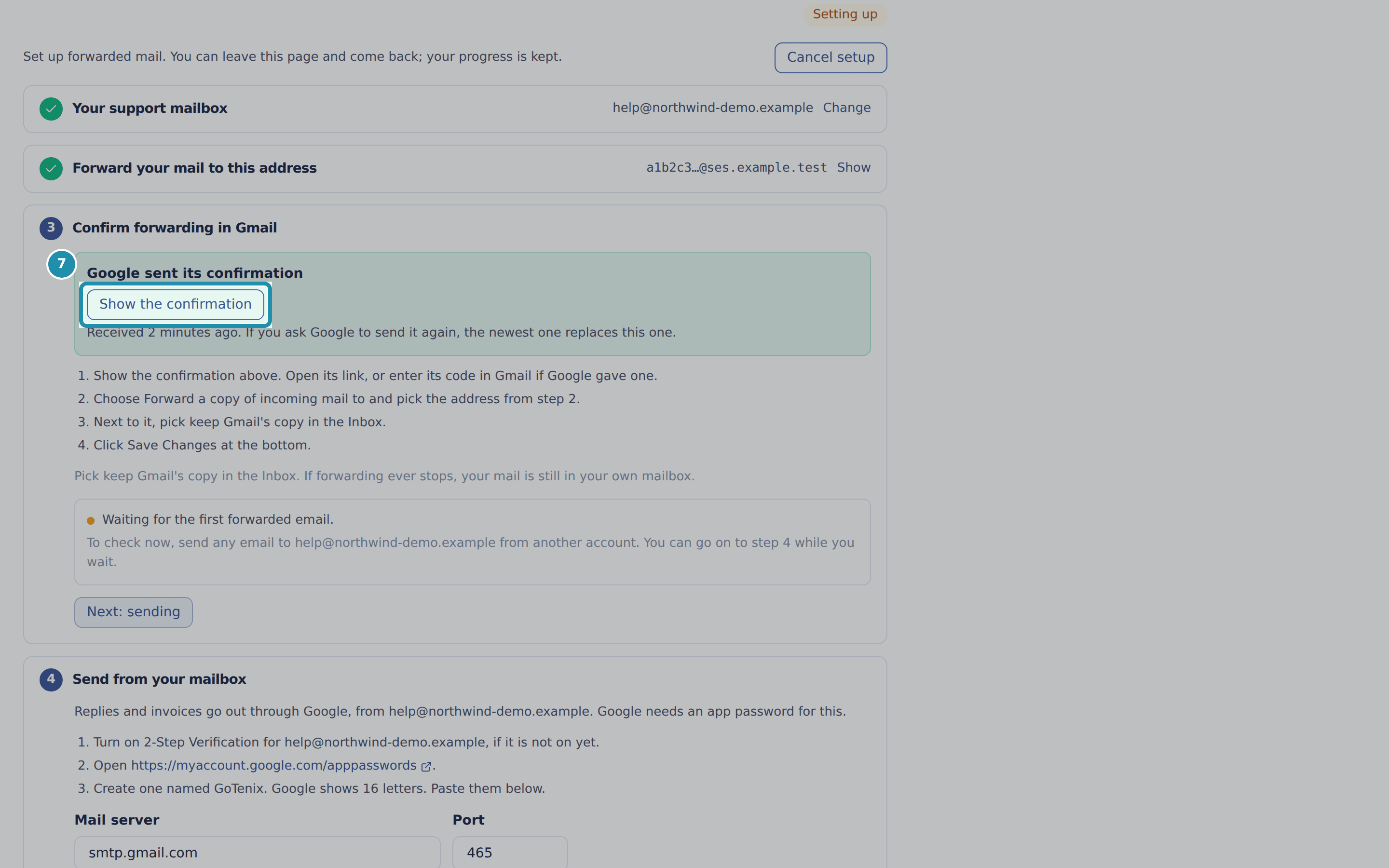 7. In step 3, wait for the page to say Google sent its confirmation, then click Show the confirmation.
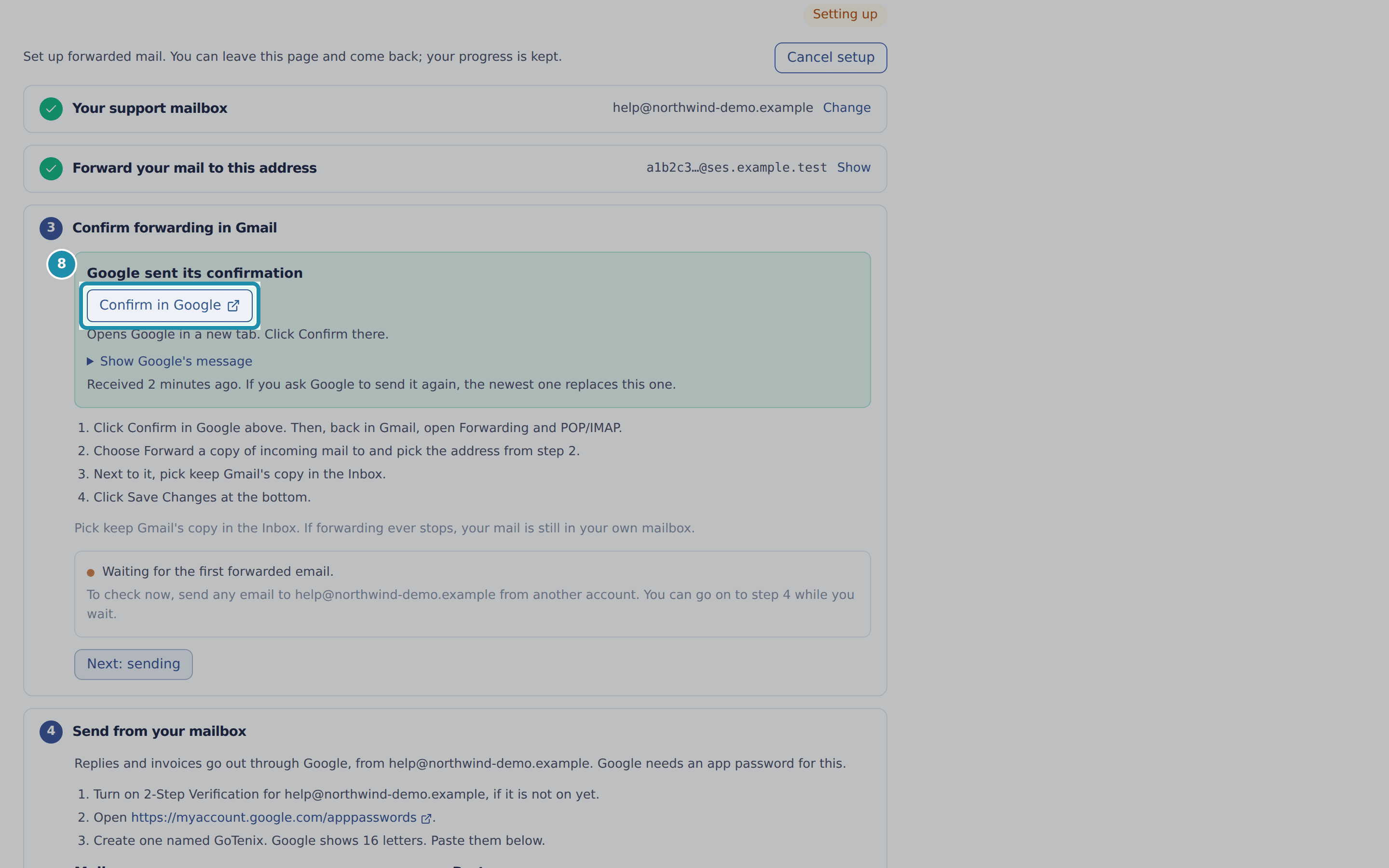 8. Click Confirm in Google.
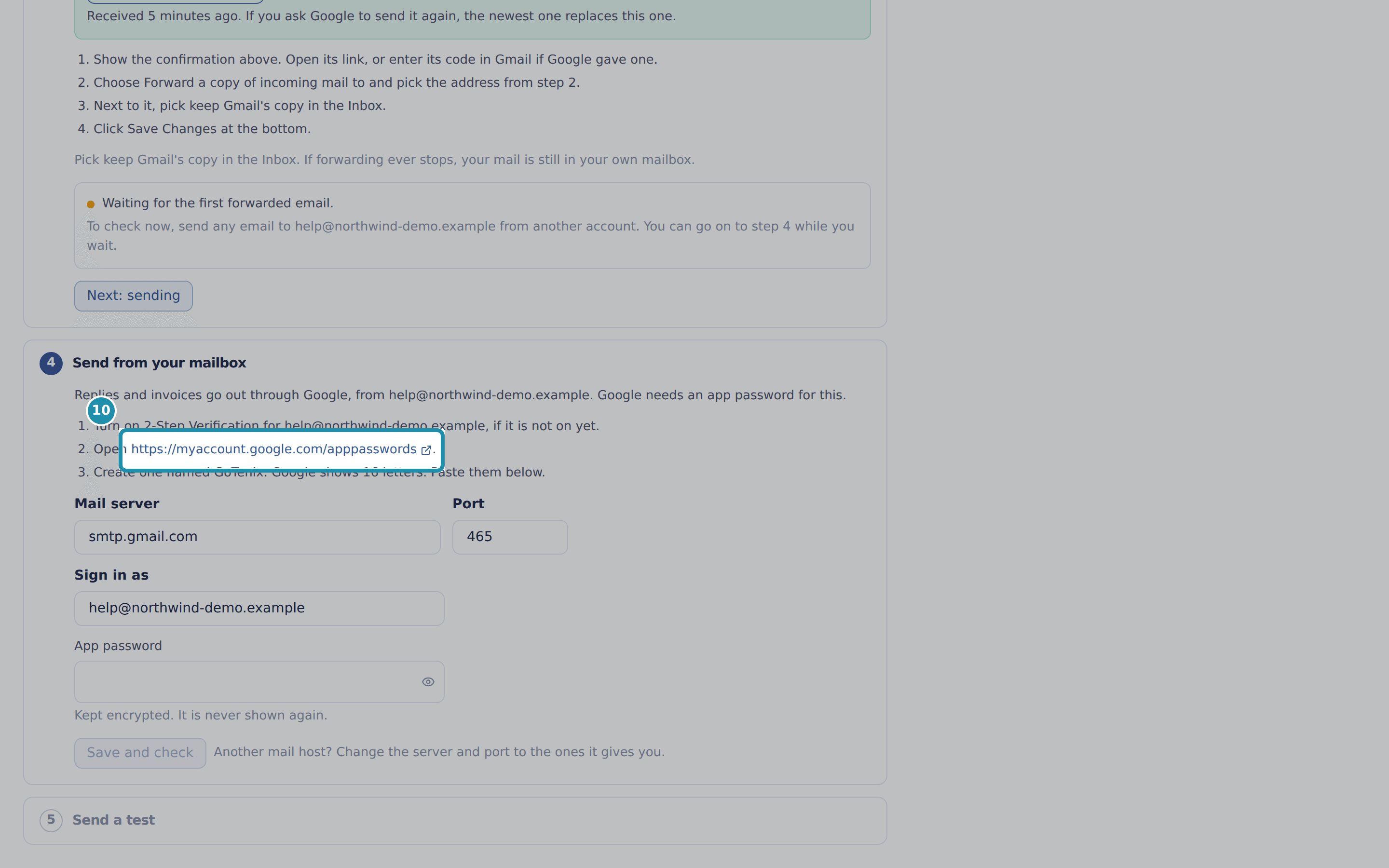 10. In step 4, open the app passwords link.
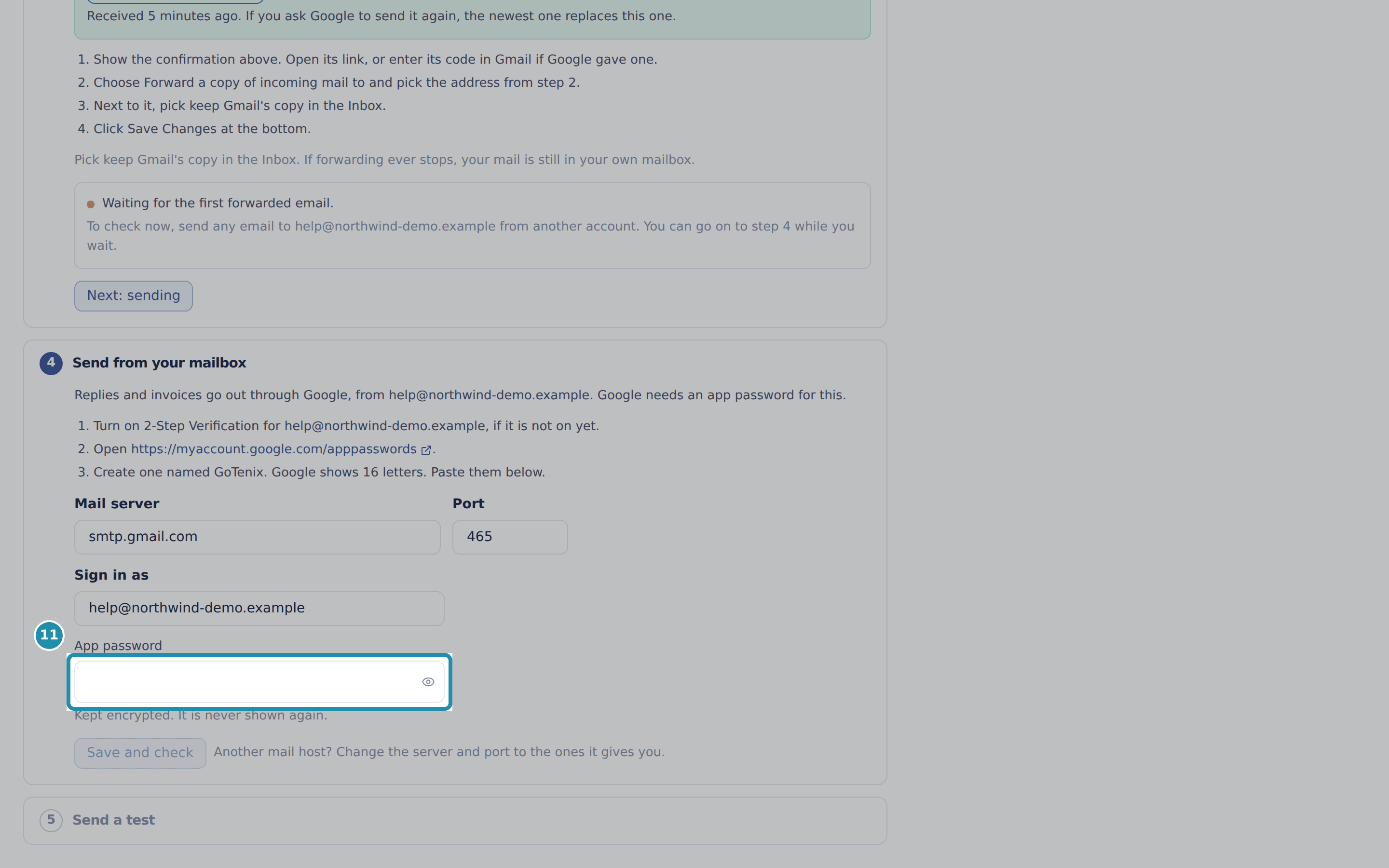 11. Paste the 16 letters into App password.
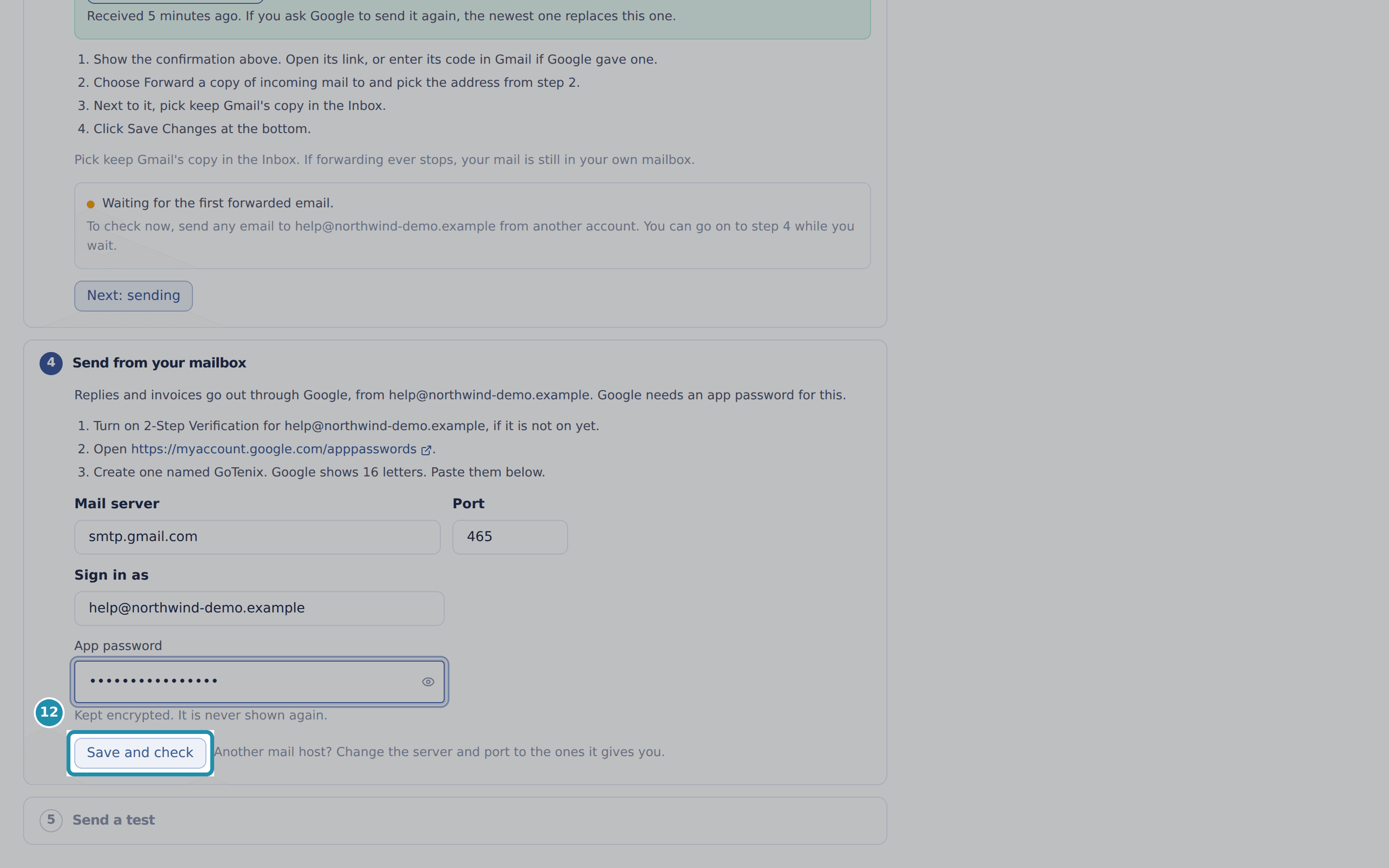 12. Click Save and check.
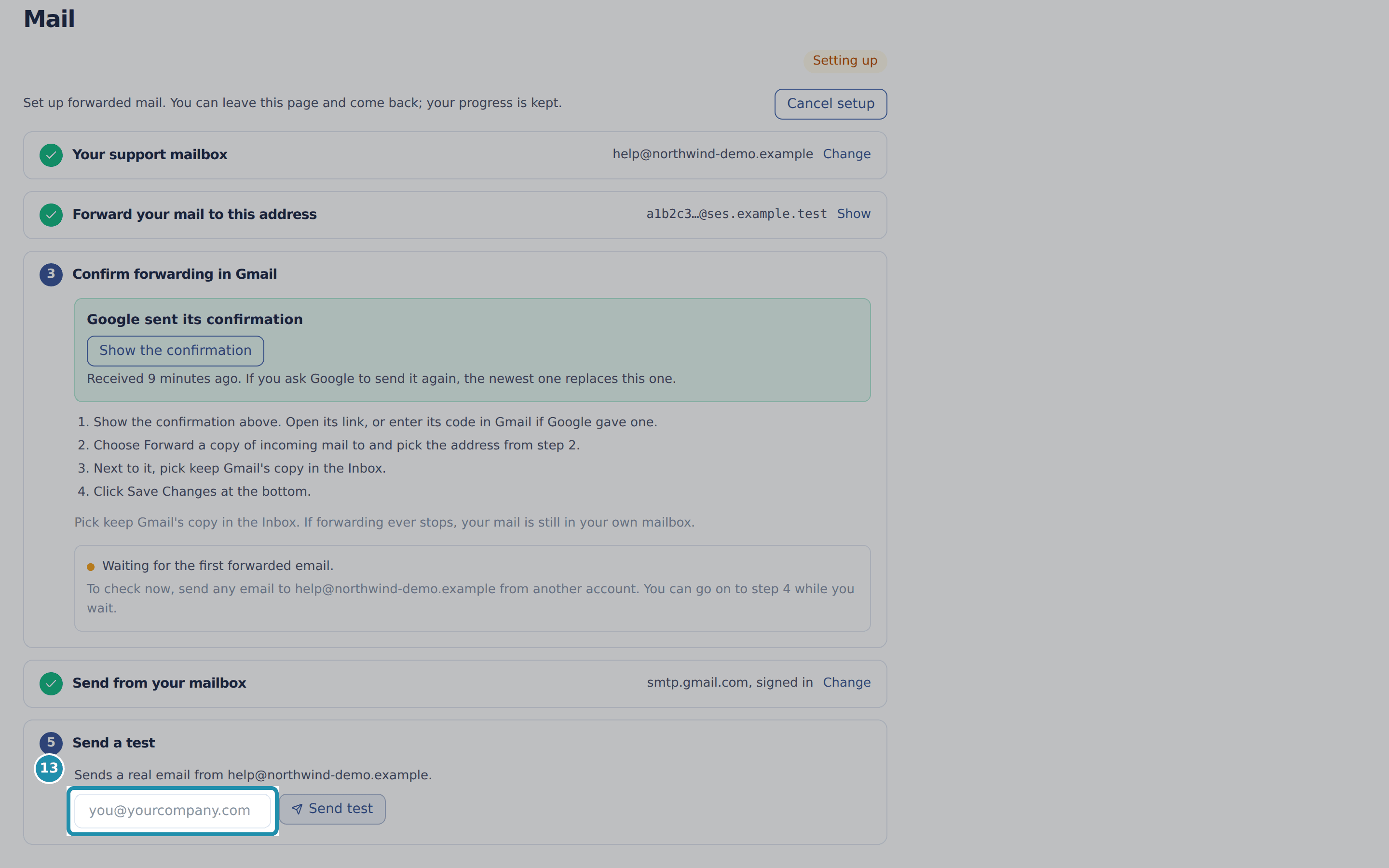 13. In step 5, Send a test, type the address to send the test to.
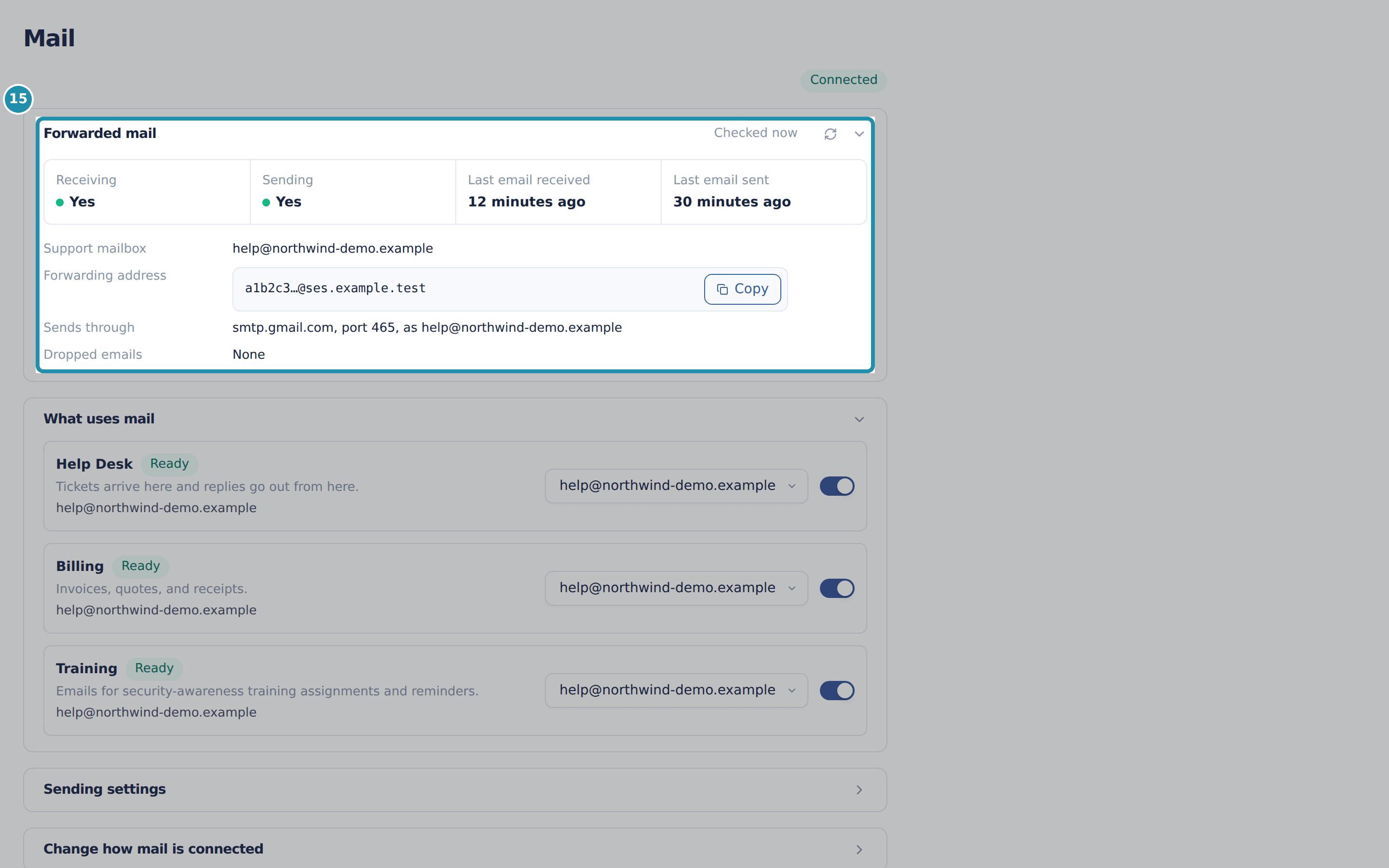 15. Read the Forwarded mail card.
Browse
On this page
How to do it
Open Admin, then Integrations, then Mail.
A badge at the top right of the page shows the state: Not connected, Setting up, Connected, Cannot send or Cannot read mail. When nothing is connected, the page asks Where is your support mailbox? and shows two cards, Microsoft 365 and Forwarded mail. The set up buttons are off for anyone who cannot edit settings.
On the Forwarded mail card, click Set up forwarded mail.
The card is for a support mailbox in Google Workspace, Gmail or another mail host, and it says the setup takes about 10 minutes. You use one type of mail at a time. You can leave the page and come back, and your progress is kept. Cancel setup stops it.
On the Forwarded mail card, click Set up forwarded mail. In step 1, Your support mailbox, type the address people write to for support.
Use a real user mailbox, for example [email protected], not a group or an alias. Forwards from an alias cannot be verified and are dropped, and only mail forwarded by this mailbox is accepted. An address that is not a full email address is refused with a line asking for one.
In step 1, Your support mailbox, type the address people write to for support. Click Continue.
Step 1 folds into one line that shows your address and a Change link, and the page tells you to add the forwarding address in Gmail next. Change asks you to confirm, then disconnects forwarded mail so you can start again. The forwarding address stays.
Click Continue. In step 2, click Copy beside the forwarding address.
The address is partly hidden until you copy it, and Copy copies all of it. This address belongs to your account. Mail sent to it from your support mailbox becomes a ticket, and mail from anyone else is dropped.
In step 2, click Copy beside the forwarding address. In Gmail, signed in as your support mailbox, add that address as a forwarding address.
Open Settings (the gear), then See all settings. Open Forwarding and POP/IMAP, then click Add a forwarding address. Paste the address. Click Next, then Proceed, then OK. Google then sends a confirmation email to this address, and it shows up in step 3.
In step 3, wait for the page to say Google sent its confirmation, then click Show the confirmation.
Until the email arrives, step 3 says Waiting for Google's confirmation email. It usually comes within a minute, and the page checks on its own. Only someone who can edit settings gets the button. Anyone else sees that Google sent its confirmation and has to ask someone who can.
In step 3, wait for the page to say Google sent its confirmation, then click Show the confirmation. Click Confirm in Google.
Google usually confirms forwarding with a link. The page shows it as Confirm in Google, and it opens Google in a new tab. Click Confirm there. The page also says when the email was received. If you ask Google to send it again, the newest one replaces this one.
Note: If Google gave a code, the page shows it as Code from Google with a Copy the code button. Paste it in Gmail on Forwarding and POP/IMAP and click Verify. Show Google's message prints Google's email as it arrived. Its first link confirms. The second link cancels, so do not open it.Click Confirm in Google. Back in Gmail, turn forwarding on.
Open Forwarding and POP/IMAP. Choose Forward a copy of incoming mail to and pick the address from step 2. Next to it, pick keep Gmail's copy in the Inbox. If forwarding ever stops, your mail is still in your own mailbox. Click Save Changes at the bottom. The page then says Waiting for the first forwarded email. To check now, send any email to your support mailbox from another account. You can go on to step 4 while you wait.
In step 4, open the app passwords link.
Turn on 2-Step Verification for your support mailbox first, if it is not on yet. The link opens Google in a new tab. Create an app password named GoTenix there. Google shows 16 letters. Replies and invoices go out through Google, from your support mailbox, and Google needs an app password for that.
In step 4, open the app passwords link. Paste the 16 letters into App password.
The page fills in Mail server (smtp.gmail.com), Port (465) and Sign in as (your support mailbox). The app password is kept encrypted and is never shown again. For another mail host, change the server and port to the ones it gives you.
Paste the 16 letters into App password. Click Save and check.
The button stays off until you paste the app password. The page then says whether the mail server accepted the sign-in. A good result reads Saved. The mail server accepted the sign-in.
Click Save and check. In step 5, Send a test, type the address to send the test to.
Step 5 sends a real email from your support mailbox. Use an address whose inbox you can open.
In step 5, Send a test, type the address to send the test to. Click Send test.
The page says the test message was sent from your mailbox to that address. Check that inbox for it. When a forwarded email has also arrived, the page says Mail is connected, and email comes in and goes out. Click Done.
Read the Forwarded mail card.
Receiving and Sending show Yes or No, and Receiving can also say Not lately. Last email received and Last email sent show how long ago. Below them are your Support mailbox, the Forwarding address, Sends through and Dropped emails. Under it, What uses mail lists Help Desk, Billing and Training. Each shows Ready or Held and has a mailbox picker and an on and off toggle.
Read the Forwarded mail card.
What you will have
- Your support mailbox forwards to GoTenix, and mail from it becomes tickets.
- Replies and invoices go out through Google from the same mailbox, and you can switch Training mail on to use it too.
- You know where the Mail page says each part is working, and what to do when it says it is not.
Why it works this way: How to connect Google Workspace mail
Connecting assigns the mailbox to Help Desk and Billing. The Connect your mailboxes wizard (Settings, System, Setup Wizards) walks you through checking these connections and turning on email to tickets; the article How to use the Connect your mailboxes wizard walks it. Training mail stays off until you switch its toggle on under What uses mail on the Mail page, where each of the three shows Ready or Held and has its own mailbox picker.
You use one type of mail at a time, Microsoft 365 or forwarded mail. To switch later, open Change how mail is connected at the bottom of the Mail page.
Other ways to do this: How to connect Google Workspace mail
Microsoft 365
On the same page, click Set up Microsoft 365 instead of Set up forwarded mail, then sign in with Microsoft once.
If it did not work: How to connect Google Workspace mail
- If Google's confirmation does not arrive, check that you pasted the forwarding address from step 2 into Gmail exactly.
- If the page says This mailbox cannot send, the reason is written under it. Most often Google refused the app password because it was removed or the account's password was changed, and a password change removes every app password.
- To fix a refused app password, make a new one at the app passwords link, paste it into App password under Sending settings, and click Save and check. Mail waits and is not lost.
- If the page says Google's daily sending limit was reached, mail sends again tomorrow.
- If the page says No forwarded email in 3 days, check in Gmail that Forwarding and POP/IMAP still forwards a copy of incoming mail to your forwarding address.
- If Dropped emails is not None, those emails did not come from your support mailbox. The See the inbound email log link next to it lists them.
- If the page says We cannot read your forwarded mail right now, contact support. New mail waits up to 7 days, and if you kept Gmail's copy your own mailbox still has every message.
Questions this page answers
What is the Mail page for?
The Mail page is where you connect your support mailbox. You find it at Admin > Integrations > Mail. It shows how tickets come in and how your email goes out. A badge at the top right shows the state: "Not connected", "Setting up", "Connected", "Cannot send", or "Cannot read mail". When nothing is connected, you see "Where is your support mailbox?" and pick one type. "Microsoft 365" is for mailboxes in Microsoft 365. "Forwarded mail" is for Google Workspace, Gmail, or another mail host. You use one type at a time. Below that, "What uses mail" lists Help Desk, Billing, and Training. Each one shows Ready or Held. Held means it waits until a mailbox is connected. To switch types later, open "Change how mail is connected" at the bottom.
How do I connect mail that is not Microsoft?
Use "Forwarded mail". It works for Google Workspace, Gmail, and other mail hosts. Go to Admin > Integrations > Mail and click "Set up forwarded mail". It takes about 10 minutes. There are five steps. First, name your support mailbox. Second, forward it to the address we give you. Third, confirm forwarding in Gmail. Fourth, add an app password so replies can go out. Fifth, send a test. You can leave the page and come back. Your progress is kept. To stop, click "Cancel setup".
What do I enter in "Your support mailbox"?
Type the address of your support mailbox, such as [email protected]. This is the mailbox your customers write to. Use a real user mailbox, such as [email protected] set up as a USER. Do not use a group or an alias. Forwards from an alias cannot be verified and are dropped. Only mail forwarded by this mailbox becomes tickets. Click "Continue". The step then shows the address. To use another address, click "Change". A box asks you to confirm. It disconnects forwarded mail, and your forwarding address stays. Then you start again with "Set up forwarded mail". You may see "Forwarded mail is not set up on this account yet. Contact support." That means your account has no forwarding address yet. Contact support and they will add it.
How do I forward my mail to the address in step 2?
Step 2 is "Forward your mail to this address". The address is partly hidden. Click "Copy" to copy all of it. This address belongs to your account. Mail sent to it from your support mailbox becomes a ticket. Mail from anyone else is dropped. Now open Gmail, signed in as your support mailbox. First, open "Settings" (the gear), then "See all settings". Next, open "Forwarding and POP/IMAP", then click "Add a forwarding address". Paste the address. Click "Next", then "Proceed", then "OK". Google then sends a confirmation email to this address. It shows up in step 3.
What is the forwarding address?
It is an address that belongs to your account. You see it in step 2, "Forward your mail to this address". Later you see it on the "Forwarded mail" card as "Forwarding address". Your support mailbox forwards its mail to this address. Mail sent to it from your support mailbox becomes a ticket. Mail from anyone else is dropped. You can copy it with the "Copy" button. Do not share it. If you paste it wrong in Gmail, Google's confirmation will not arrive.
How do I finish step 3, "Confirm forwarding in Gmail"?
First, the page says "Waiting for Google's confirmation email." It usually comes within a minute. The page checks on its own. When it arrives, the page says "Google sent its confirmation". Click "Show the confirmation". Google usually sends a link. Click "Confirm in Google". It opens Google in a new tab, and you click Confirm there. Some Workspace accounts may get a code instead. If Google gave a code, copy it. Then in Gmail, on "Forwarding and POP/IMAP", paste it and click "Verify". "Show Google's message" shows Google's email as it arrived. Its first link confirms. The second link cancels, so do not open it. If you cannot edit settings, ask someone who can. Back in Gmail, open "Forwarding and POP/IMAP". Choose "Forward a copy of incoming mail to" and pick the address from step 2. Next to it, pick "keep Gmail's copy in the Inbox". If forwarding ever stops, your mail is still in your own mailbox. Click "Save Changes" at the bottom. The page then says "Waiting for the first forwarded email." To check now, send any email to your support mailbox from another account. You can go on to step 4 while you wait. If you ask Google to send it again, the newest one replaces the old one. If nothing comes, check that you pasted the address from step 2 exactly.
How do I finish step 4, "Send from your mailbox", so GoTenix can send?
Replies and invoices go out through Google, from your support mailbox. Google needs an app password for this. First, turn on "2-Step Verification" for your support mailbox, if it is not on yet. Next, open https://myaccount.google.com/apppasswords. Create one named GoTenix. Google shows 16 letters. Paste them in "App password". The page fills in "Mail server" (smtp.gmail.com), "Port" (465), and "Sign in as" (your support mailbox). The app password is kept encrypted. It is never shown again. Click "Save and check". It stays off until you paste the app password. The page then says if the mail server accepted the sign-in. For another mail host, change the server and port to the ones it gives you.
What does step 5, "Send a test", do?
It sends a real email from your support mailbox. Type the address to send it to. Click "Send test". The page then says the test message was sent from your mailbox to that address. Check that inbox for it. When the page shows "Mail is connected", email comes in and goes out. That needs three things. First, one forwarded email must have arrived. Second, the app password must be saved. Third, one send must have worked. Click "Done". Next, choose what uses this mailbox under "What uses mail".
What does the "Forwarded mail" status card show?
The card shows if forwarded mail is working. "Receiving" and "Sending" show Yes or No. "Receiving" can also say "Not lately". "Last email received" and "Last email sent" show how long ago. Below that are your "Support mailbox", the "Forwarding address" (with a Copy button), and "Sends through". "Sends through" shows the server, the port, and the mailbox it signs in as. "Dropped emails" counts mail we threw away. It also says when the last one came. Click "See the inbound email log" to see them. The card header says when it last checked. The card never shows your app password.
What happens if the password changes?
If the Google account's password changes, Google removes every app password. Sending then stops. Mail shows "This mailbox cannot send:" with your mailbox. Forwarded mail still comes in. Only sending is affected. Make a new app password in Google. Paste it in "App password" under "Sending settings", then click "Save and check". It saves the password and checks it. Use "Send test" after that if you want proof. Mail that waited sends on its own after a send works.
Was this helpful?