How to pick a theme and table density and set your domain and portal URL
Give the portal your own brand colors in a Custom palette your whole team can switch to, tune row spacing to fit more on screen, and set the Company Domain and Portal Base URL your connected systems and outgoing emails rely on.
See it
Browse
On this page
How to do it
Open Settings > Company > Theme and look at the three color presets.
Classic is Blue primary with red accents, Dark is a dark theme with purple highlights, and Custom is White-label with your brand colors. Clicking any of the three applies it at once across the portal, for you only. The same choice is in your name menu.
Open Settings > Company > Theme and look at the three color presets. Select Custom to open the Custom Theme Editor.
Selecting Custom applies it as your own theme and reveals the Custom Theme Editor under the cards. Until then the page says "Select the Custom theme above to edit your brand colors." The editor's own text says "These colors apply system-wide for all users." That is true of the fifteen color values, not of which preset you personally have selected.
Look at the Custom Theme Editor's fifteen color fields.
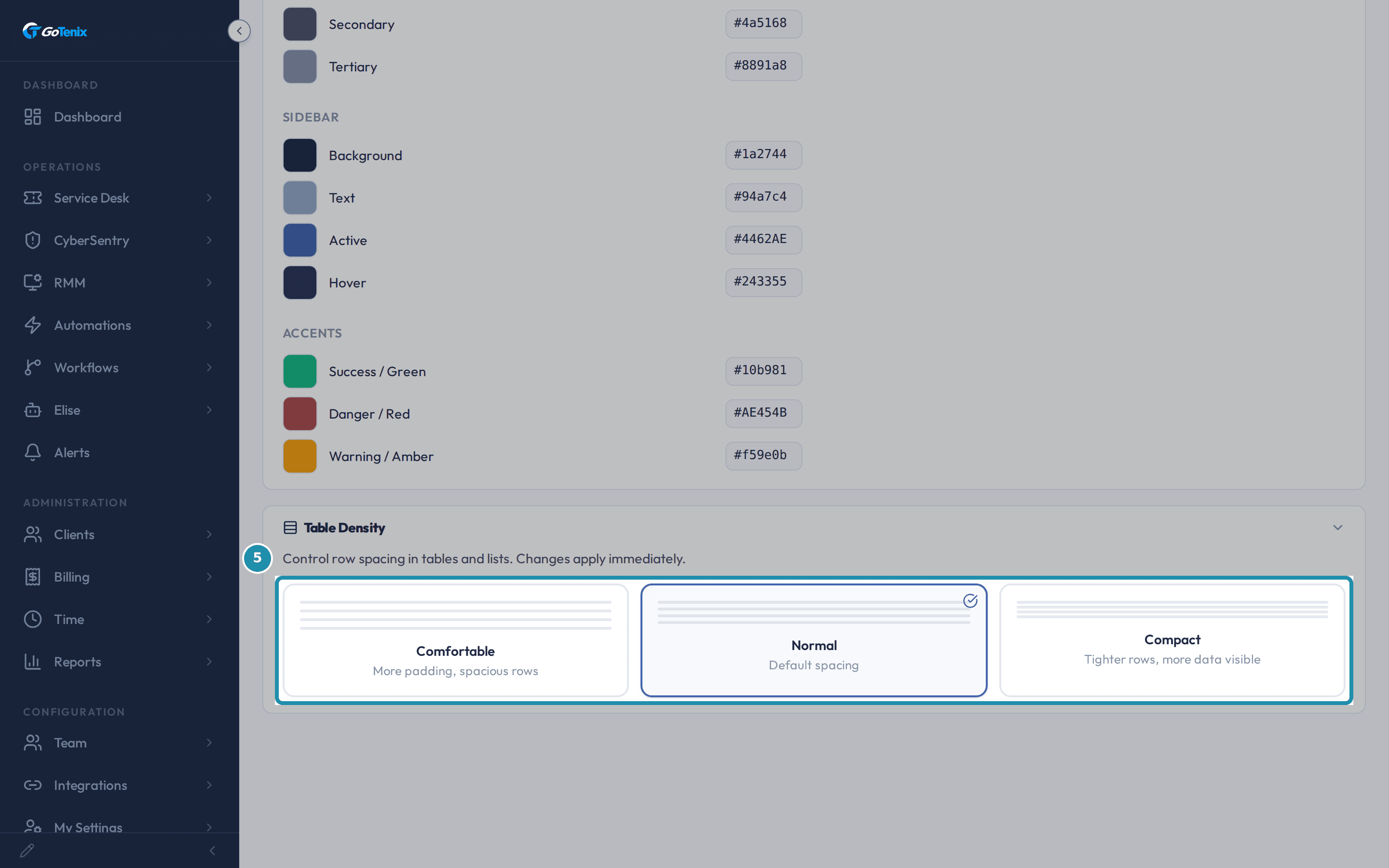
They are grouped into five sections: Brand (Primary Brand Color, Text on Brand), Surfaces (Background, Secondary, Tertiary), Text (Primary, Secondary, Tertiary), Sidebar (Background, Text, Active, Hover) and Accents (Success / Green, Danger / Red, Warning / Amber). Each has a color swatch you can click and a box for a six-digit hex value such as #4462AE, the shipped Primary Brand Color. A live Preview panel beside the fields shows the palette on a small mock sidebar, header, status cards and table. Save Custom Theme saves all fifteen values for the whole MSP. Reset to Defaults loads the shipped palette into the editor without saving, so click Save Custom Theme afterwards if you want to keep it.
Know that your Theme and Density choices live in your browser, not your account.
Which theme you have applied and which density you have picked are both saved in your browser's own storage, not on your user record. Switching to another computer, or clearing this browser's data, starts both again from the system default (Classic, Normal). The Custom palette's fifteen colors are the exception. Save Custom Theme writes them to a setting shared by the whole MSP, so every teammate who later picks Custom sees the same brand colors, but picking Custom is still each person's own choice.
Open Table Density, below Theme, and look at its three spacing options.
Comfortable is More padding, spacious rows. Normal is Default spacing. Compact is Tighter rows, more data visible. The page says the change applies immediately, and it changes the padding of table cells, table headers and rows.
Open Table Density, below Theme, and look at its three spacing options. Open Settings > Company > Domains & URLs and find Company Domain.
Enter your company's primary domain, for example yourcompany.com. The text under the field says it is used to match your organization in connected systems like your PSA and shared mailbox, and that it does not decide who is staff: add staff explicitly on the Team page.
Know what actually decides staff versus a client user at sign-in.
Staff access, an admin-tier account, is granted one way: an existing staff member adds someone explicitly under Team > Staff. The one exception is the owner's very first sign-in, which sets up the first staff account. Neither Company Domain nor Portal Base URL plays any part in that decision.
Find Portal Base URL, on the same page.
The text under the field says it is the public URL of the portal, for example https://portal.example.com, used in outgoing emails and links sent to clients, and that leaving it blank detects it from the host the portal is running on. When you save a new address, the portal first checks that it really leads back to this portal and refuses it if not, so a typo cannot break your emailed links.
What you will have
- Switch to the Custom theme and set its fifteen color fields, grouped into Brand, Surfaces, Text, Sidebar and Accents.
- Know that your Theme and Density choice lives in your browser, not on your account, and starts again on a new machine or after clearing browser data.
- Know that the Custom palette's own colors are the one part of Theme that saves for the whole MSP, even though each person still has to pick Custom to see it.
- Pick Comfortable, Normal or Compact row spacing and see it apply at once.
- Set Company Domain and Portal Base URL on Domains & URLs, and know that neither one decides who is staff.
- Know where staff access is actually granted.
Why it works this way: How to pick a theme and table density and set your domain and portal URL
Theme mixes two kinds of state on one page. The Custom palette's fifteen colors save for the whole MSP, but which theme you have applied and your Density choice are kept only in your own browser, and the page does not mark the difference.
Company Domain and Portal Base URL sit together on Domains & URLs. People often assume Company Domain decides who gets staff access. It does not: staff access comes from Team > Staff.
Other ways to do this: How to pick a theme and table density and set your domain and portal URL
All Settings search
Open Settings > System > All Settings and search by field name. Company Domain and Portal Base URL show up with a link straight to the page that edits them. You only see the settings you have access to.
Ask Elise
Ask "What is our Portal Base URL set to?" and she looks it up for you, read only. Ask her to set it to a new address and she shows the current value next to the new one and waits for your one-tap approval before changing it. The same check that blocks a bad address on this page applies. Company Domain is rated high risk, so she sends you to this page for that one. Either request needs access to Settings.
If it did not work: How to pick a theme and table density and set your domain and portal URL
- If a teammate says their theme keeps resetting, remind them it is stored per browser, not per account. A new machine or cleared browser data starts again from Classic and Normal.
- If the Custom Theme Editor is not showing, click the Custom card first. The editor only appears while Custom is your selected theme, and until then the page says to select the Custom theme above.
- If Save Custom Theme is greyed out, change a color first. The button only turns on after an edit, and Reset to Defaults counts as one.
- If saving Portal Base URL is refused, the address does not lead back to this portal yet. Fix its DNS and routing, or leave the field blank so the portal detects it from the host it runs on.
- If someone was expecting Company Domain to grant them staff access, point them at Team > Staff instead. That is where staff access is granted.
Questions this page answers
What does table density control?
The Density control on Settings → Company → Theme adjusts the padding and font size of all data tables. Compact shows more rows per screen, Normal is the default balance, and Comfortable adds extra spacing for readability. Changes apply immediately across all tables.
Why doesn't my theme follow me to other browsers?
Theme + Density choices live in your browser's localStorage, not on your user record. Switching laptops or clearing browser data resets the active theme to the system default. The CUSTOM PALETTE you can author here IS shared across the whole MSP (stored on a Setting row), but each user picks which theme to APPLY locally. Acceptable for a comfort knob; expect the reset.
How do I build a custom theme?
Pick Custom Palette and tune the 15 swatches (Brand and On-Brand colors, three Surface backgrounds, three Text colors, four Sidebar colors, and the three Cyber accents). Save persists the palette MSP-wide. Each tech still picks Custom Palette themselves to apply it; the default theme stays whatever they had selected.
What is Density?
Vertical spacing on tables, cards, and forms. Compact = tightest (good for high-info dashboards on big monitors); Comfortable = roomy; Normal = the default. Like Theme, the choice is per-browser via localStorage. Every DataTable, ticket row, and detail card respects the active density.
How does the portal decide who is staff?
Staff status (isInternal) is no longer inferred from an email domain, and there is no Internal Domains field here anymore. Someone becomes staff only when you add them explicitly under Team > Staff (the owner's first sign-in bootstraps the first staff account). Domains & URLs holds just your Company Domain and Portal Base URL, and neither grants staff access.
What decides staff versus client at sign-in?
Domain matching no longer grants staff; staff (isInternal=true) is set only by Team > Staff. A configured internal-domains value, where one still exists, only lets a matching email self-provision as a client user (role USER, isInternal false, pointed at your internal org) on first SSO, which is how your own employees get a client-side login. It never confers staff or admin access, so misconfiguring it cannot hand anyone staff-tier access.
Why does Portal Base URL matter?
Every outgoing magic-link email and ticket-reply notification stamps this as the URL prefix. Set it to your public URL (https://portal.yourcompany.com). Leaving it blank auto-detects from the host header - fine for single-domain instances, brittle when you front the portal with multiple domains. Edits take effect on the next outgoing email (no cache).
Was this helpful?