How to review, approve, send and fix invoices
Review and approve what is waiting, send invoices, then fix any invoice by voiding, deleting, regenerating or moving it, and catch up months a plan never billed.
See it
Browse
On this page
How to do it
Open Billing > Approval Queue and review what is waiting.
Each pending invoice shows its client, amount, source and period, grouped as Core Plans, Add-On Plans, License Plans, Ticket and Quotes. Open one to read its lines before you decide. Approve All and the group buttons approve a whole set after a confirm that says it cannot be undone, so read the rows first.
Approve or reject an invoice, and read each dialog first.
Approve asks you to confirm: it numbers the invoice, makes it payable and pushes it to QuickBooks, and it cannot be undone. Reject opens a dialog that names the amount, says nothing is charged, and asks Why are you rejecting it? Confirming deletes that one pending invoice and charges nothing. The dialog adds that the period re-bills at the next Generate if it is still due. A month that is not picked up shows as an unbilled period, which step 5 covers.
Read an approved invoice's detail page.
Invoice Details holds the invoice number, source, client, created and approved by, Last Sent, due date and tax code. Line Items holds what is billed, with a subtotal and total. Billing Derivation and History sit below, collapsed, and History lists every change made to the invoice. When the client's price is below the plan's list price, Line Items shows the list price and a minus Discount line under it. The total is the same either way.
Note: A Paid invoice locks its lines and says why: raise any correction on the next invoice. A Void invoice is locked too.Click Send and read who it will reach.
Send Invoice lists the client's billing contacts under Always included: the billing email, primary contact and any additional billing contacts, managed under Clients > Billing. Add recipient adds anyone else for this one send. The dialog says sending emails everyone listed and the invoice becomes visible to the client right away. After a successful send, Last Sent fills in and a Sent to row lists who it reached. Sending an invoice that already went out asks Send this invoice again? first. If the mail is queued, the page says so and points you to System Logs > Email Log.
Click Send and read who it will reach. Catch up an unbilled month with the badge and the backfill picker.
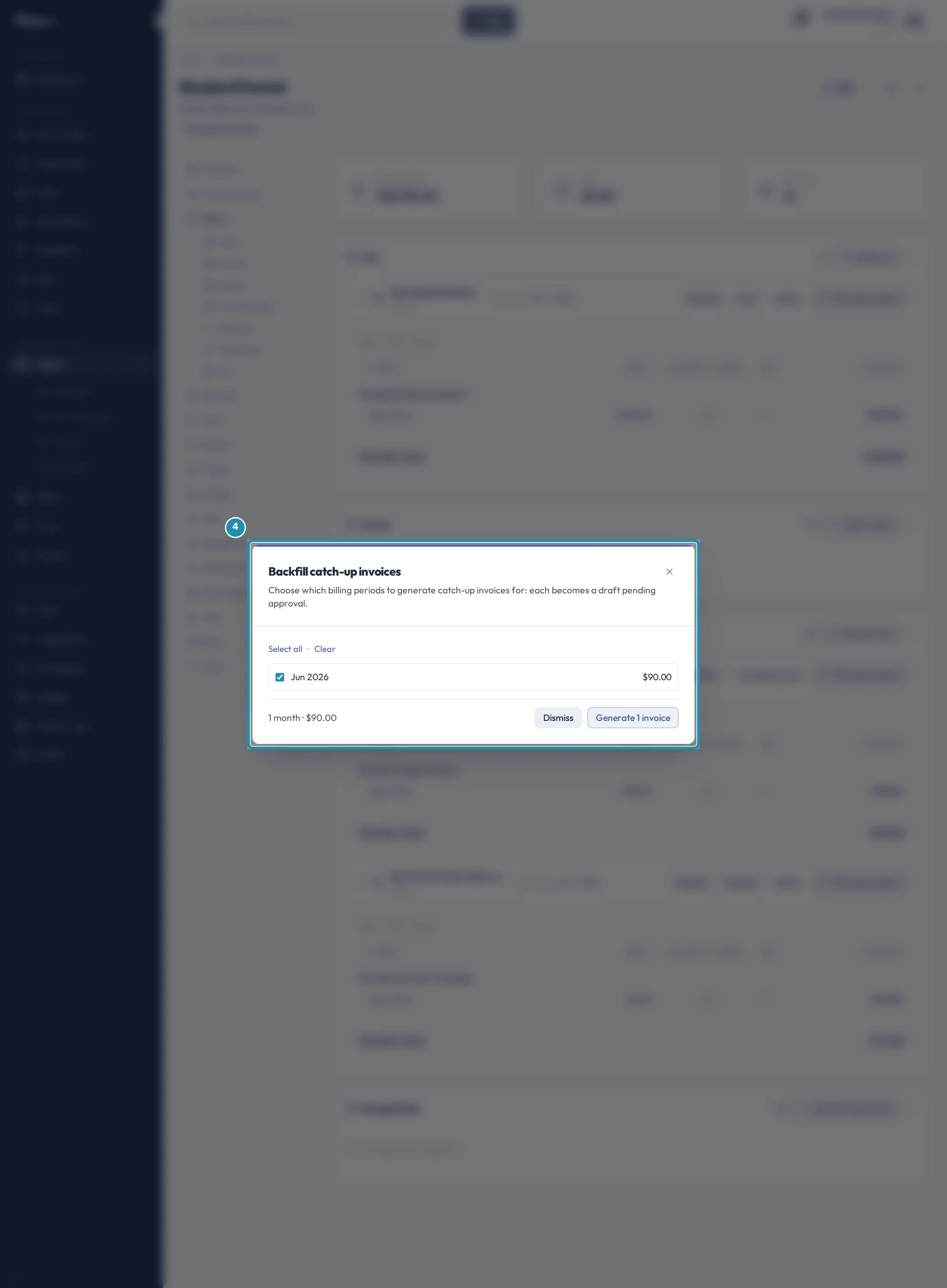
A rejected month is not charged on its own. It shows on the client's Billing > Plans page as an orange badge such as 1 unbilled period, and the badge's hint says billing will not charge these on its own. Click it to open Backfill catch-up invoices. It lists each month with its price and a checkbox, with Select all and Clear above. Generate makes a draft for each ticked month, which lands in the Approval Queue like any other draft. Dismiss closes the months for good, and billing never offers them again.
Catch up an unbilled month with the badge and the backfill picker. Set a plan's Billing Start Date in the past to bill every month since.
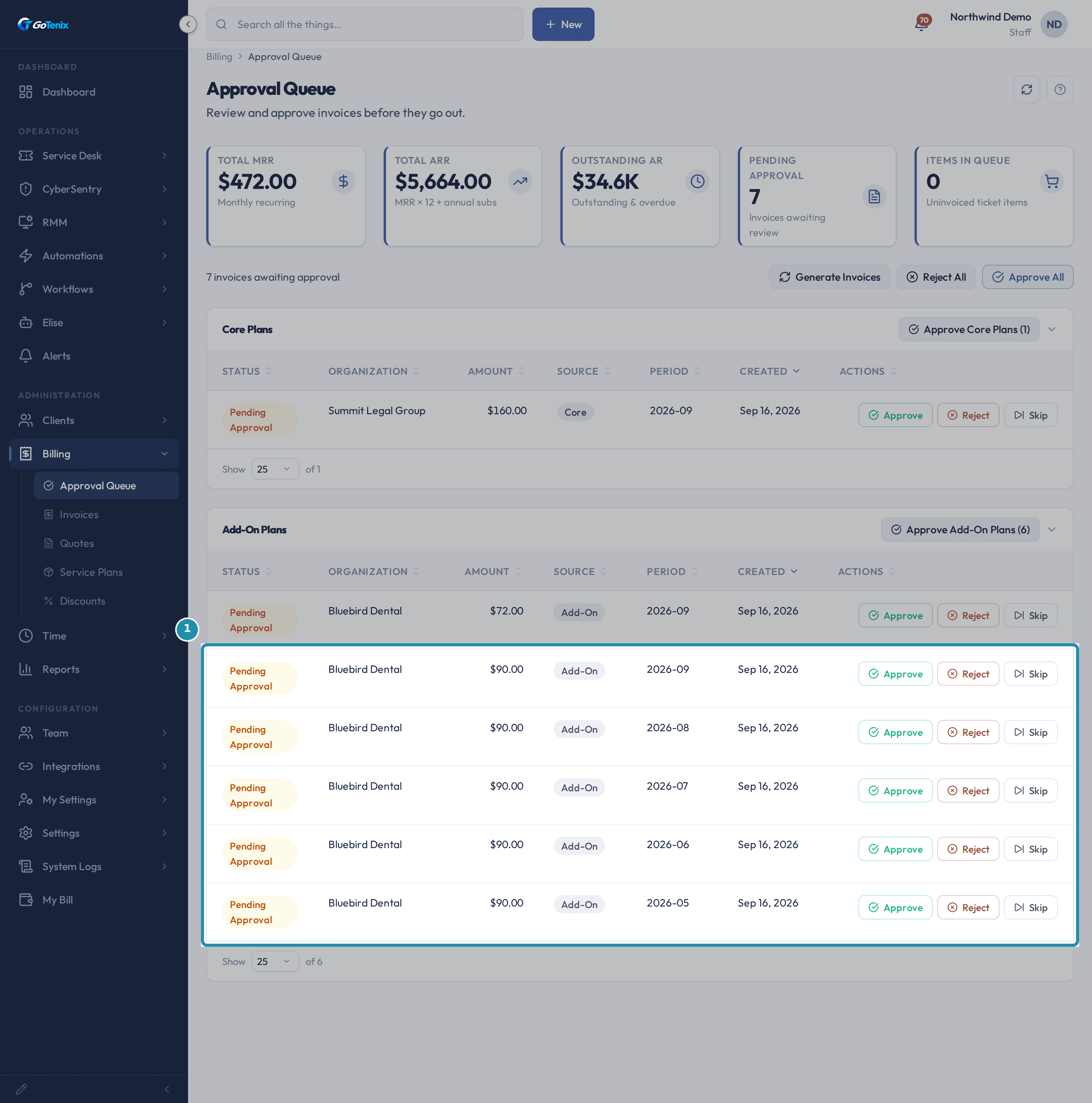
Backdating a client's subscription by four months and generating produced one Pending Approval draft per month since then, each with its own period and amount. The image shows five Add-On drafts for Bluebird Dental, periods 2026-05 to 2026-09 at $90.00. Nothing is charged until you approve them. If those months were already paid elsewhere, set the start date to the month billing should begin, or Dismiss the months in the backfill picker.
Set a plan's Billing Start Date in the past to bill every month since. Click Push to QuickBooks.
Push to QuickBooks sends the invoice to your connected QuickBooks company, and pushing again updates it there. The Tax Code field steers the tax and otherwise falls back to the client's, then the item's, then your default.
Note: If someone deletes the invoice in QuickBooks, the nightly sync voids it here too and keeps its number, lines and history. The Void shows the reason Removed in QuickBooks. To bill that period again, use Regenerate from source.To fix an invoice, open its actions menu.
On an approved plan invoice the menu offers Send, Push to QuickBooks, Print, Download PDF, Void and Delete. On a plan invoice that is Draft, Pending Approval or Void, and on a ticket-charges invoice that is not yet approved, Regenerate from source rebuilds it at today's counts, prices and tax, and hand edits are not kept. An invoice you typed by hand has no source to rebuild from. Void keeps the invoice as a record and does not free its billing period.
Delete an invoice and choose what happens to its period.
Because an approved plan invoice already billed a real period, Delete asks first. Re-bill this period next run hands the month back, so the next billing run charges it again. Leave it billed closes the month for good, and that money never returns to a future invoice. Either way the invoice itself is deleted. Cancel changes nothing.
Move an invoice to the right client.
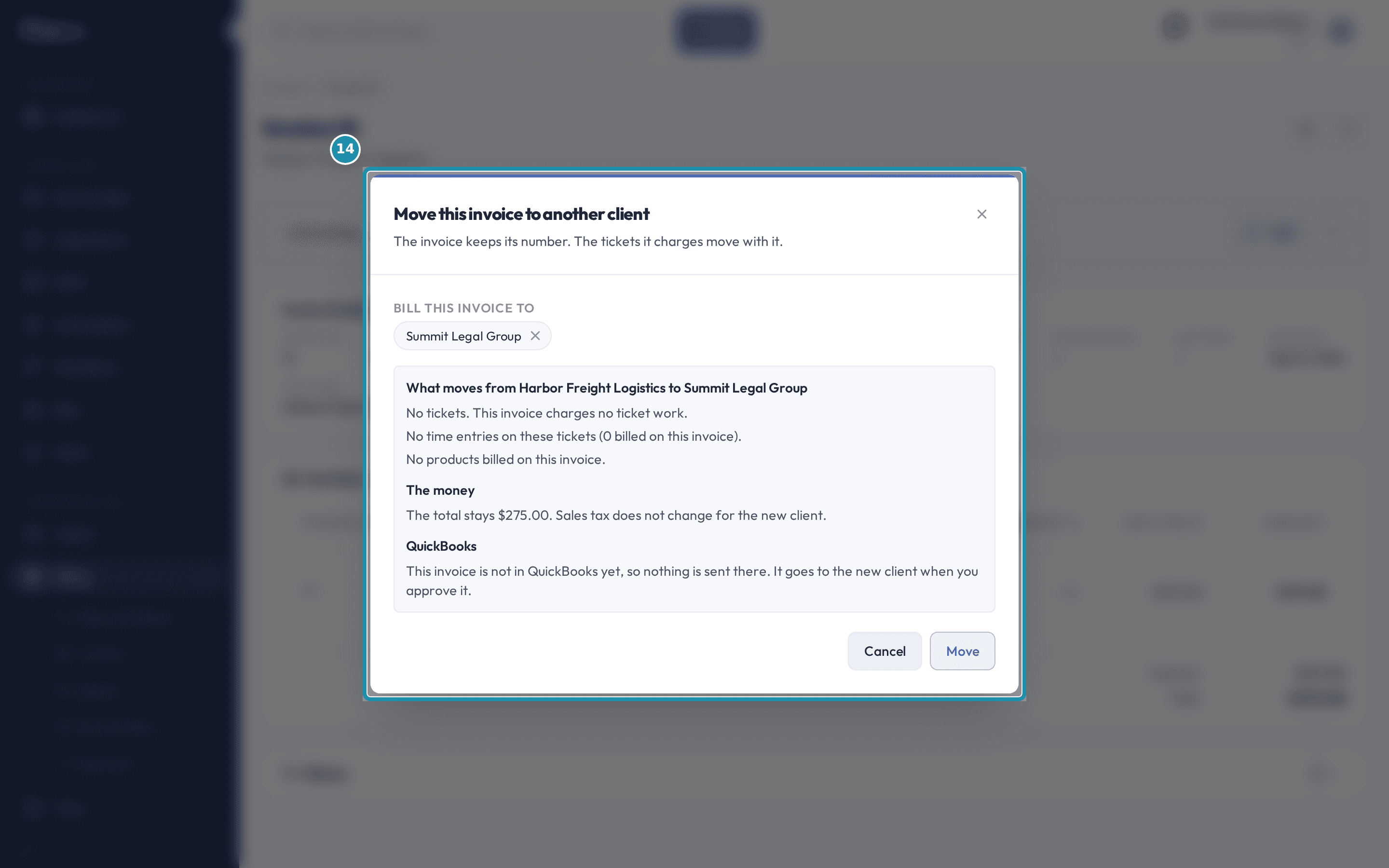
Open the actions menu and click Move to client. Picking a different client shows what moves before anything happens: the tickets, the time entries and the products the invoice charges, whether the total stays the same, and what happens in QuickBooks. The invoice moves there too, and if QuickBooks refuses, nothing changes here either. If the invoice was already emailed, the dialog tells you, and you send it again to the new client. The invoice keeps its number.
Move an invoice to the right client. Open Billing > Invoices and use the Status filter and search box.
All statuses leaves out Void, because a void invoice is history rather than money owed, so pick Void to see them. The search box matches an invoice number or a client name. Columns include Last Sent and Source, and All, Recurring and One-off narrow the list by origin. A row whose status changed on its own carries a small chip such as via Invoice overdue sweep, naming the automation. A notice at the top names every client with unbilled periods.
Click New Invoice and pick a customer.
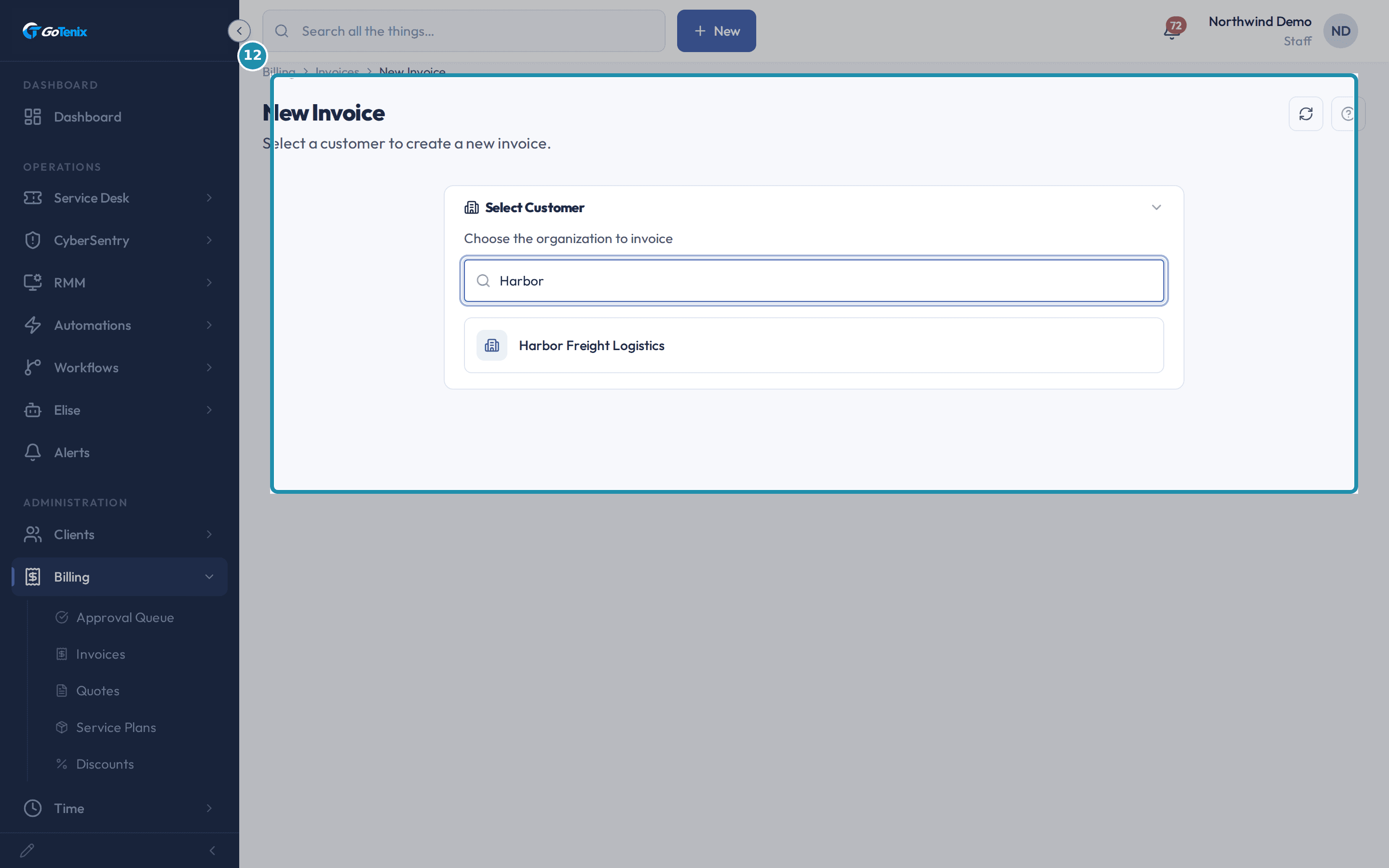
New Invoice asks for a customer first. Picking one creates a blank Draft invoice for that client and opens the same detail page every other invoice uses, where you add the lines.
Click New Invoice and pick a customer. Add a line and click Save & finalize.
Type a Display Name and a Unit Price for the line, or pick a product. Save & finalize turns the Draft into a numbered Outstanding invoice in one click. Save as draft, in the menu beside it, keeps it a draft instead.
What you will have
- Review the Approval Queue and approve or reject each invoice after reading its dialog.
- Read an invoice's detail page: Invoice Details, Line Items and History.
- Send an invoice, push it to QuickBooks, print it or download a PDF.
- Void, delete, regenerate or move an invoice, knowing what each does to its billing period.
- Find the unbilled periods badge and charge or dismiss missing months, including backdated ones.
- Search the Invoices list and create a manual invoice.
Why it works this way: How to review, approve, send and fix invoices
A backdated start date is an instruction, not a mistake the software absorbs. On a subscription that has never billed, the next run makes one draft per month since that date, and every draft waits in the Approval Queue for a person to approve or reject it. Nothing charges on its own because a date sat in the past.
True Value Pricing is a display choice, not a second charge. When a client's own price is lower than the plan's list price, the invoice shows the list price on one line and the saving as its own minus Discount line below it. The net total is identical either way. The Discount True Value Pricing setting turns the display off.
Move to client only offers itself when moving is safe. It is available on Draft, Pending Approval, Outstanding and Overdue invoices. It is not offered on a Paid or Void invoice, on a plan invoice (it belongs to whoever is subscribed to that plan), on an invoice that was created in QuickBooks, on one already recorded in the platform's book, or while a QuickBooks push is in progress.
Other ways to do this: How to review, approve, send and fix invoices
Ask Elise
To find things, ask her to "list every overdue invoice" or "show Summit Legal's unpaid invoices", or "what is waiting in the approval queue?". To add up, ask her to total what is overdue and she reads the list and adds the amounts. To change things, ask her to "approve the pending invoices for Bluebird Dental", "void invoice 12", "create a $275 invoice for Harbor Freight" or "push invoice 12 to QuickBooks". Each change asks you to confirm first. Rebuilding an invoice from its source, and deleting one, are filed for you to release with a typed reason.
If it did not work: How to review, approve, send and fix invoices
- If Generate Invoices does not make a draft you expect, check the subscription is Active (not Paused, Cancelled or Scheduled) and that its Billing Start Date has arrived. A subscription that has already billed makes at most one new period per run, so older months show as an unbilled periods badge. Charge them with Backfill.
- If the backfill picker's Generate button is disabled, tick at least one month. Select all and Clear sit right above the list.
- If Push to QuickBooks or Send is not available to you, check Settings > Integrations. Push needs QuickBooks connected and the client linked to a QuickBooks customer, and Send needs a billing mailbox. The red banner on the page names what is missing.
- If Move to client is missing from an invoice's menu, check what the invoice is: a plan invoice, a Paid or Void invoice, one created in QuickBooks, one already recorded in the platform's book, and one with a QuickBooks push in progress never offer it.
Questions this page answers
What happens if I set a plan start date in the past?
You get one draft invoice per month since that date, and nothing is charged until you approve them. Backdate a start six months and the next run creates six drafts in Billing > Approval Queue. Each one shows its own month and price. Approve the ones you want and reject the ones you do not. The start date is treated as an instruction, so type it on purpose. The approval queue is what stands between typing it and charging anybody. If those months were already paid somewhere else, you have two ways to say so. Set the start date to the month you really want billing to begin. Or leave it and open the unbilled periods badge on the plan row, under Client > Billing > Plans. Dismiss in that picker closes those months for good in one action. A month that prices to $0 does not generate. That means a missing rate or an empty count. It reports why, and it never blocks the months around it. Each draft stands alone, so one bad month costs you that month, not the run.
What do Finalize and Approve do?
Finalize is in the menu on a draft. It turns the draft into a real bill. On an invoice you typed yourself the primary button reads Save & finalize and does both at once, and Save as draft in the menu keeps it a draft. Approve is in the menu on one waiting for approval. It gives the invoice a number, makes it payable, and pushes it to QuickBooks. Reject sits beside it and throws the draft away.
Do I still need the backfill picker for a backdated plan?
Usually not on a brand new backdated plan. The next run already makes a draft for every month since the start date, so there is nothing left to catch up. The picker is for gaps on a plan that has ALREADY billed. That means a month you rejected and now want back, a month that priced to $0 at the time, or months a run never reached. Those do not catch up by themselves. The unbilled periods badge on the plan row is what tells you they are there, and this picker is how you charge them when you choose. It only offers months with no invoice at all. It shows each month's price before you tick it. Tick January and March but not February and you bill January and March. February keeps showing as a gap until you tick it too. Nothing waits on an unticked month. A month you never want billed is Dismiss, right beside the generate button in this same picker. That closes it for good. Skip on an existing invoice is a different action, for an invoice that already exists.
What is on this page?
This is one invoice. The top row shows its status, plus the period and the plan it came from. Invoice Details holds the number, the source, the client, and the dates. Line Items holds what is being billed, with the subtotal and total under it. History at the bottom lists every change made to this invoice.
Why does my Core invoice show a plan line and a minus discount line?
That is true value pricing. When a client's own price is lower than the plan's list price, the invoice shows the list price on one line. The gap shows below it as a minus line ending in Discount. The net is the same as one line at the lower price. The client just gets to see the list price and what they saved. You can turn this off at Settings > Billing & Pricing > Invoice Settings, with the Discount True Value Pricing switch. Off, and the invoice shows only the price they pay.
Why is there no "Move to client" on this invoice?
The item only shows on an invoice that can still move. Drafts can move. So do invoices waiting for approval, unpaid, or overdue. It is hidden once any money has been paid on it. It is hidden on a void invoice. It is hidden when the invoice bills a plan, not ticket work. It is hidden when the invoice came in from QuickBooks. It is hidden when the platform holds its own copy of the bill. It is hidden while the invoice is being sent to QuickBooks. It is hidden while we wait for QuickBooks to tell us the balance. A plan invoice moves when you move the plan. A paid invoice stays with the client that paid it. If you pick a client and the box says no, it tells you why. The client may not be linked to QuickBooks yet. The client may already have a ticket charges invoice waiting for approval. The client may be turned off or deleted. Or some of the work may be billed on another invoice.
Why does Delete ask me about the billing period?
Because an approved plan invoice has already used up a month, and there is no safe default. Re-bill this period next run hands the month back. Any discount terms come back too, and the next run bills that month again. Leave it billed treats the month as used. It is never offered again, so that money is gone. Either way the invoice is deleted, in QuickBooks first if it was pushed there. Its ticket charges are freed. Cancel changes nothing. A few old invoices have nothing to rewind to. Delete is refused on those, and Void is the right action.
What does QuickBooks do on this invoice?
QuickBooks holds the books. Push to QuickBooks is in the menu on an owed invoice that has not gone over yet. Re-Push to QB is there instead once it has. If a push fails, the page prints the reason in red above Invoice Details. The Tax Code field steers the next push. Leave it on the default and the client, the item, then the instance decide the code in that order.
What do Send, Print and Download PDF do?
Send emails the invoice to the client. It opens a box first that lists who will get it, and you can add more people for that one send. If the invoice was sent before, Send asks first whether to send it again. Most sends go out right away. If the mail queue cannot get it out at once, this page says so instead of claiming it went out, and Logs > Email Log shows how it ends. Print opens the PDF in a new tab. Download PDF saves the same file. Send is not offered on a draft, on one waiting for approval, or on a void one.
Where do I see who an invoice was emailed to?
Open the invoice and look at the Invoice Details card. It shows Last Sent, and next to it a Sent to row. That row lists the people the last send actually reached. It counts mail that was delivered, and it appears once the invoice has been sent. Sending again updates both. This is for your team only. The client portal never shows who an invoice went to.
What does the Last Sent column show?
The day you last emailed this invoice from the app, using Send on the invoice. It updates each time you send it again. It only stamps when the email really went out. A failed send leaves it alone. A dash means the invoice was never emailed from here. That is normal. Some teams send invoices from QuickBooks, or get paid by e-transfer. For them the column stays blank, and that is not an error.
How do I search or filter the Invoices list?
The search box matches an invoice number or a client name. The Status list narrows to Draft, Outstanding, Paid, Overdue or Void. All statuses does NOT include Void, because a void invoice is history, not money owed. It shows only when you pick Void. That is also how you find invoices someone deleted in QuickBooks. Invoices waiting for approval are never in this list. They sit on the Approval Queue tab, and they land here as Outstanding once you approve them.
How do I create a new invoice?
Open the Invoices tab and click New Invoice. You can also start from a client's Billing tab. Pick the customer. That opens a new draft invoice right away. Add each line with the product search, then set the amount and the price. Save keeps it as a draft. Save & finalize turns it into a real invoice.
This invoice is on the wrong client. How do I fix it?
Open the invoice and click the three dots at the top right, then "Move to client". Pick the right client under "Bill this invoice to". The box then tells you what moves: the tickets by number, how much time and how many products, what the total does, and what happens in QuickBooks. It also tells you if this invoice was already emailed to the old client, and to whom. Click "Move" to do it, or "Cancel" to back out. The invoice keeps the same number, and the tickets it charges move to the new client with it. If the invoice is already in QuickBooks, QuickBooks is changed first. If QuickBooks says no, nothing changes here either. Sending the invoice again is up to you: moving it does not un-send the email the old client already got.
Why can I not change the lines on a paid invoice?
A paid invoice is a record of money that already moved. So the page locks its lines and says so, rather than hiding the Edit button. To correct what was billed, raise the difference on the next invoice. For the same reason a paid invoice has no Void and no Delete in its menu. A void invoice is locked too.
Why does an invoice say it was removed in QuickBooks?
Somebody deleted this invoice inside QuickBooks. The nightly sync reads QuickBooks' change feed and finds it gone. It voids the invoice here and keeps the number, the lines and the history. That way you stop billing a client for money the book of record no longer has. In the Invoices list, filter to Void. The Status column shows the Void badge and, next to it, a "Removed in QuickBooks" chip. Open the invoice and a banner near the top says the same thing. The billing period stays used up. Nothing bills again on its own. If this was a plan invoice, use Regenerate on it to bill that period again. A ticket-charges or hand-built invoice has no Regenerate button here. Free its items and time on the ticket instead, or write a new invoice by hand. A PAID invoice is mirrored the same way. The payment record itself is untouched. It stays on file and points at the now-void invoice. Only the invoice's status changes. Voiding a paid invoice by hand is still refused everywhere else. Only this nightly check may do it, because only it is acting on QuickBooks' own word. Sometimes the portal cannot void the invoice right away. It may be in a state the Void doors refuse, such as a draft or one still waiting for approval. That invoice keeps an amber banner on its own page instead, saying it was removed in QuickBooks but is not voided here yet. It still counts as a receivable. The sync retries it every night for up to 30 days. After that it stops retrying and says so, and the banner turns red: the sync gave up and you must settle it by hand. The message only disappears when the invoice actually settles: void a live invoice, reject or skip one waiting for approval, or delete a draft.
Was this helpful?