How to set up AI meeting agendas and CSAT
Get client meeting agendas written by AI from your own reusable sections and only the data you choose, and measure satisfaction with a rating email you style, where unhappy ratings alert the right staff and happy customers are offered a Google review link.
See it
Browse
On this page
How to do it
Open Settings > Clients > Meetings & Agendas and look at the Meeting Types table.
Each row is a meeting type the agenda generator can build from: a Name, a Slug, a Default Title Format built from placeholders like {MONTH}, {YEAR} and {Q}, and a Prompt. Monthly Review, Quarterly Business Review, Annual Review, Security Review and Onboarding / New Client come with the product and carry a padlock, so they cannot be deleted, though their prompt notes and title formats can be edited. Custom is a special type whose prompt is written fresh each time an agenda is generated from it, shown as "Custom (user-provided)".
Click a meeting type's pencil to open it, then look at Show custom prompt field at generate time and the prompt field below it.
Take Quarterly Business Review as the example. With Show custom prompt field at generate time off, the field below reads AI Prompt Note and is added to the standard prompt to shift its emphasis, so the agenda is still built from the type's assigned sections. The QBR note asks for strategic value, ROI, budget impact and quarterly trends. Turn the toggle on and the same field becomes Default Custom Prompt, and the agenda is written from that one prompt instead.
In the same panel, find the Agenda capabilities card and write a prompt for it.
Agenda capabilities sits under the prompt field. Its hint says that when it is set, the AI sees ONLY the data these skills return, not a full client dump, and that leaving it empty runs the standard agenda. Write your prompt in the field above it first. For a hardware review, write "Hardware review - offline devices and over-provisioned licenses".
Click Suggest from prompt, then Add to my list.
The button is greyed out until a prompt is written. It sends your prompt to the AI, which picks skills from the list and shows them as an "AI suggested" result with Dismiss, Add to my list and Replace my list. That exact prompt is the example the suggester is taught, so for it you should expect devices.offline and licenses.unused. After you add them, the card shows how many are selected and those boxes are ticked: devices.offline lists offline devices, up to 50 rows, and licenses.unused lists Microsoft 365 license types with unused seats.
Tick a skill yourself and set its params (JSON) when it takes any.
The other boxes are tickets.open, tickets.byUser, devices.aging, security.mfaGaps, known-issues.recent and automation.proposals. Ticking tickets.open opens a params (JSON) field, and {"ageDays": 60} limits it to open tickets at least 60 days old. Bad JSON is flagged under the field and is not applied. Save Changes stores the list on the meeting type.
Now the agenda is built from only those picks.
When an agenda is generated for a meeting of this type, the portal runs just the ticked skills and gives the AI only their output. A meeting type with nothing ticked uses the standard full client record. A type in Custom Prompt mode gives the AI no client data at all, so the prompt alone controls what it covers.
Scroll to Sections in the same panel and look at the assigned list.
Sections lists the agenda sections this meeting type runs, in the order they generate: Ticket Summary, Device Health, Security Posture, License & Renewals, Key Talking Points and Recommendations for Quarterly Business Review. Drag a row by its handle to reorder, or click its X to remove it from this type without deleting the section. Select a section to add and Add, below the list, assign another from the shared library.
Close the meeting type and look at the Agenda Sections table further down the page.
This is the shared library every meeting type draws from. Each row has a Title, a Slug, a Description shown when assigning it, and the start of its AI Prompt. Ticket Summary, Device Health, Security Posture, License & Renewals, User Changes, Known Issues, Key Talking Points and Recommendations come with the product and carry a padlock, so they can be edited but not deleted. When a meeting type runs, the AI writes all of the type's sections in the order listed, as one agenda.
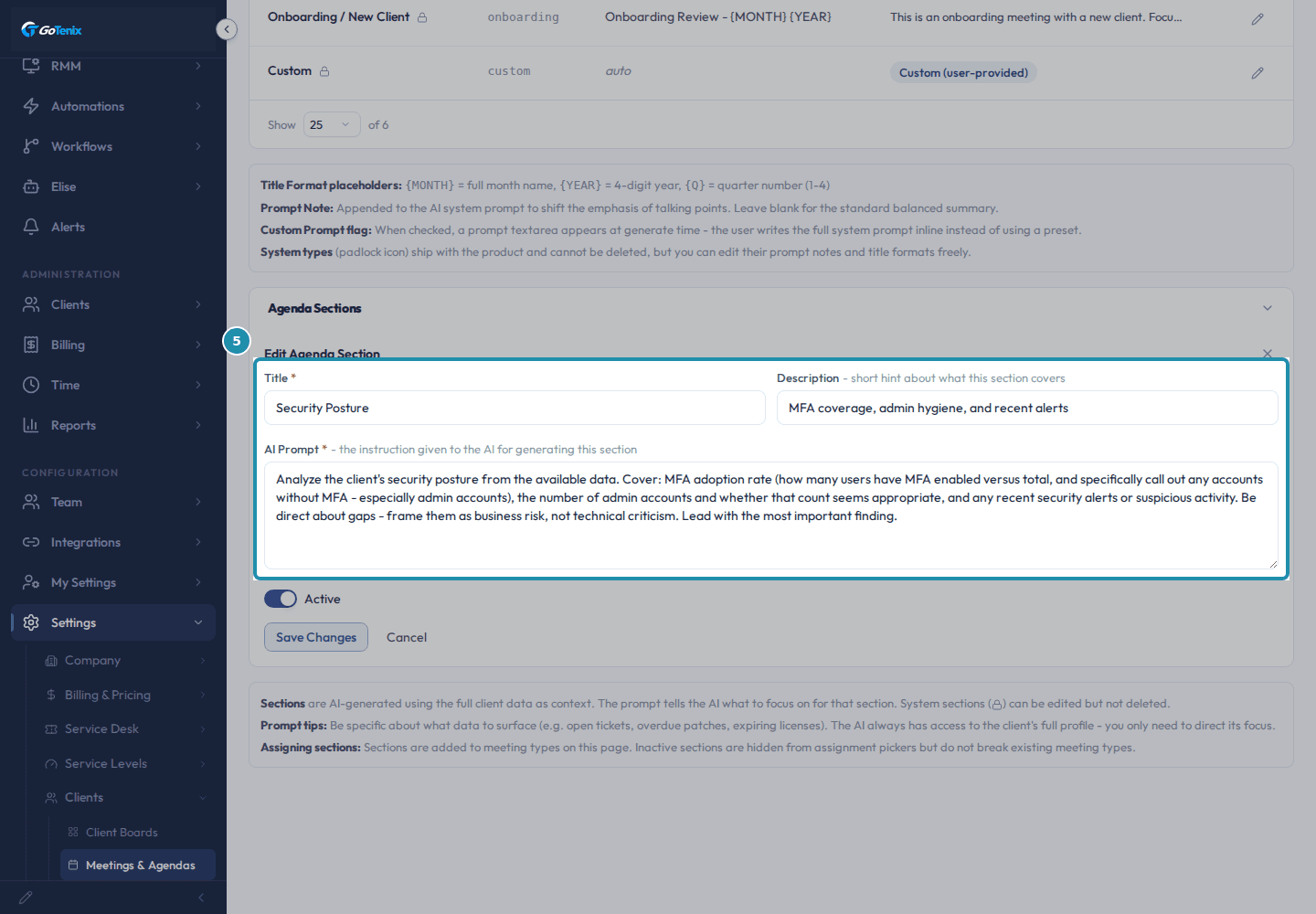
Close the meeting type and look at the Agenda Sections table further down the page. Click a section's title or pencil to open it, then read Title, Description and AI Prompt.
Title and the optional Description are what a person sees when assigning sections. AI Prompt is the instruction the AI gets when that section is written, and it always has the client's profile available, so it only needs to say what to focus on. Security Posture's prompt asks for MFA adoption, admin account counts and recent alerts, framed as business risk, and ends with "Lead with the most important finding." A good prompt for a new section names the specific data to surface, such as open tickets, overdue patches or expiring licenses, instead of leaving it open-ended.
Click a section's title or pencil to open it, then read Title, Description and AI Prompt. Open Settings > Clients > CSAT and set CSAT Scale and CSAT Labels.
CSAT Scale picks how many rating buttons the ticket-closed email shows: 1-3 (Simple), 1-5 (Standard, the default) or 1-10 (NPS). CSAT Labels holds the text under each button, one input per rating, so changing the scale adds or removes label rows. The default labels for the 1-5 scale are Terrible, Poor, OK, Good and Excellent.
Pick a CSAT Email Style and check the Email Preview.
CSAT Email Style sets how the buttons look. The choices are Smileys - Classic, Smileys - Flat, Smileys - Modern, Stars, Hearts, Numbered circles, Color blocks (red / yellow / green) and NPS bar. Color blocks and Numbered circles work at any scale, and Color blocks is the most accessible. NPS bar is meant for the 1-10 scale, and on any other scale the email uses Smileys - Classic instead. The preview under the dropdown draws the same buttons the customer gets, at your current scale and labels. Every email also carries a "Buttons not showing? Rate your experience here" link.
Set Google Review URL and Google Review Threshold (% of scale).
The customer clicks one rating button in the ticket-closed email. If that rating is at or above Google Review Threshold, the customer sees a thank-you page with a Leave a Google Review button that opens Google Review URL, so a happy customer can post a public review. The threshold is a percentage of the scale and defaults to 80%, which means a rating of 4 or higher on a 1-5 scale. It needs a Google Review URL filled in to have anywhere to send them. To keep from nagging, each contact is asked at most once every six months and each client has a quarterly cap, so a happy rating does not always show the button.
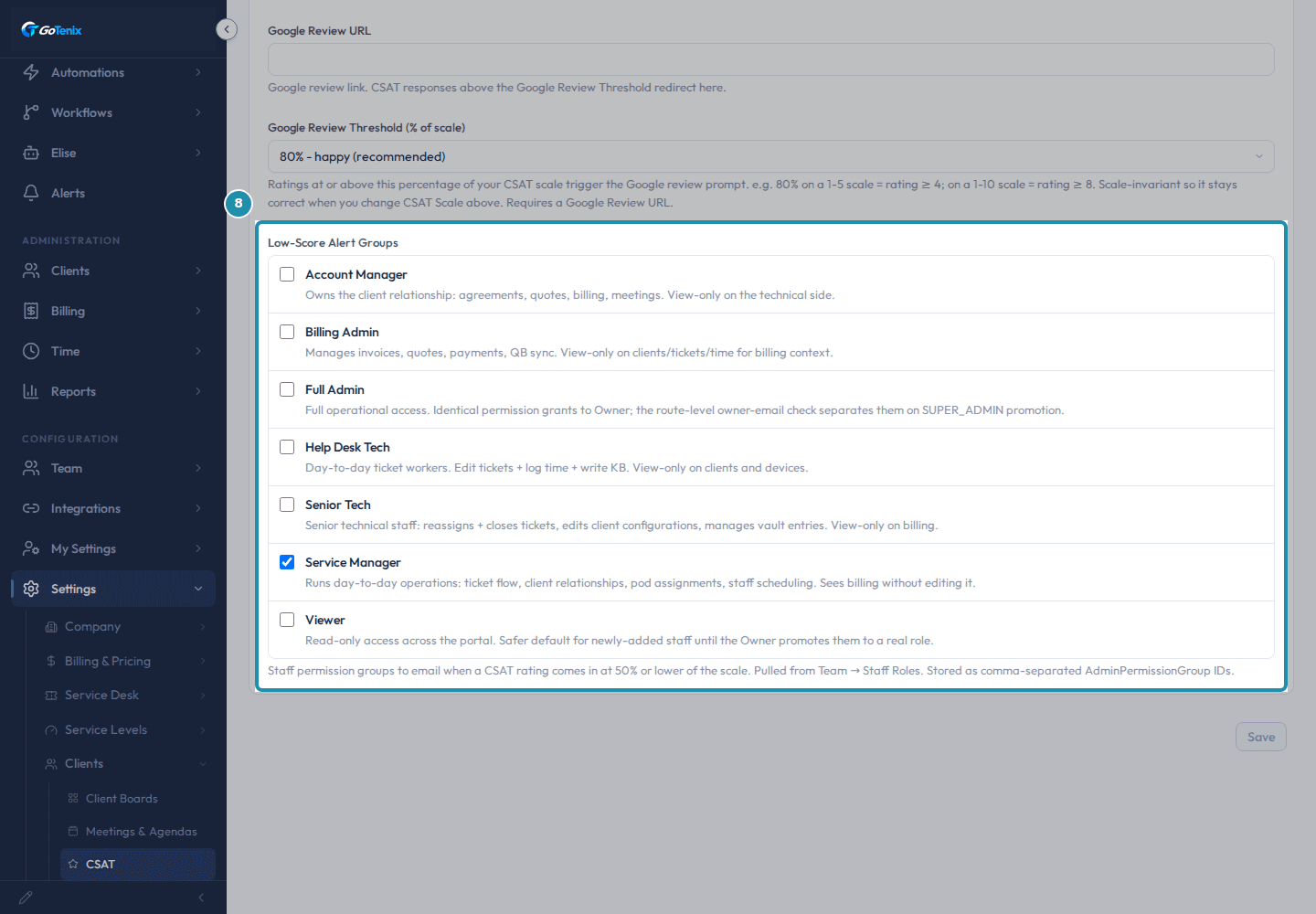
Check a group under Low-Score Alert Groups and save.
Every permission group you check, listed from Team > Staff Roles, gets an email when a CSAT rating comes in at 50% or lower of the scale, so an unhappy customer reaches dispatch or management without anyone watching an inbox. No group is checked by default.
Note: Checking a group sends nothing by itself. It takes effect the next time a real rating comes in at or below 50% of the scale.Check a group under Low-Score Alert Groups and save.
What you will have
- Find Meeting Types and know how a meeting type's prompt gets used.
- Know what the Custom Prompt toggle changes.
- Use Agenda capabilities so an agenda is built from only the data you pick.
- Find Agenda Sections, assign sections to a meeting type, and write a good section prompt.
- Pick a CSAT Scale, labels and email style, and read the preview.
- Offer happy customers a Google review link and alert your staff to unhappy ratings.
Why it works this way: How to set up AI meeting agendas and CSAT
A meeting type's single prompt field changes with the Custom Prompt toggle. Off, it is an AI Prompt Note added to the standard prompt, so the agenda is still built from the type's assigned sections. On, it is a Default Custom Prompt that replaces the standard prompt, and the AI works from that one instruction.
Agenda capabilities decide what the AI is allowed to see. Leave them empty and a standard agenda uses the full client record. Tick some and the AI sees only what those picks return, so the AI works from what those picks return instead of the whole client record.
CSAT Labels always shows one input per rating value, so changing CSAT Scale changes how many label boxes appear.
If it did not work: How to set up AI meeting agendas and CSAT
- If a generated agenda reads generically, open its sections on Agenda Sections and make each AI Prompt name the specific data to surface.
- If an agenda ignores a section, check that the section is still in the meeting type's own Sections list. Removing it from one type does not delete it from the shared library.
- If an agenda covers too much or too little, check the Agenda capabilities card. Nothing ticked means the full client record, and ticked skills mean only their output.
- If a happy customer is not offered a Google review, check that Google Review URL is filled in on CSAT. Each contact is asked at most once every six months, and each client has a quarterly limit, so a recent ask can also hold it back.
- If nobody is told about a bad rating, check that at least one group is ticked under Low-Score Alert Groups.
Questions this page answers
What is a meeting type?
A reusable template the AI agenda generator runs against to build a meeting agenda (QBR, Security Review, Onboarding, etc.). Each type composes one or more Agenda Sections (the prompts that tell the AI what to write). Use Capabilities to scope what data the AI sees (open tickets, RMM signals, etc.) instead of dumping the full client record.
What is "Custom Prompt" mode?
Two AI generation modes: section-composed (default - runs each Agenda Section's prompt in turn, then stitches) and custom-prompt (monolithic - runs your single Prompt Note over the whole client record). Section mode gives finer control; custom mode is faster to author when you have one consistent style. The Custom Prompt toggle picks which mode this type uses.
How do agenda sections work?
Each section is a named prompt block (e.g. "Open Issues", "Hardware Health"). When a meeting type uses sections, the AI runs each section's prompt in order and concatenates the output. System sections can be edited but not deleted (they're what the seeded meeting types depend on, so the lock marks them non-removable); custom sections you write are fully editable and deletable.
How do I write a good section prompt?
Be specific about format: "List up to 5 open Critical tickets older than 7 days, bullet-pointed, with a one-line summary each." Avoid open-ended asks ("discuss…") - the AI is generating prep notes, not having a conversation. Reference the client data fields the agenda generator collects (clientData.tickets, clientData.devices, etc.) when you want it to be specific.
Scale vs. Labels - what controls what?
Scale picks how many rating buttons render in the email (3 = simple, 5 = standard, 10 = NPS-style). Labels lets you customize the text under each button. The Labels field auto-resizes to match the Scale (5 inputs when Scale=5, 10 when Scale=10).
What happens after a customer rates a ticket?
They land on a confirmation page. If their rating is at or above the Google Review Threshold (default 80% of scale - e.g. ≥4 on a 5-scale), the page redirects to your Google Review URL so happy customers post a public review. Lower ratings stay internal.
Who gets emailed when CSAT is low?
Every member of the Low-Score Alert Groups (Permission Groups picked from Team → Staff Roles) gets an email when a CSAT rating comes in at 50% or lower of the scale. Use it to surface unhappy customers to dispatch or management without watching the inbox.
Was this helpful?