How to quote a job, get the yes and invoice it
Build a quote with required and optional lines, email it so the client accepts online, and the invoice is made the moment they accept. Offer a Budget or Premium option and the client picks one.
See it
Browse
On this page
How to do it
Open Billing > Quotes > New Quote and search for a contact.
Searching Bluebird finds Priya Shah at Bluebird Dental. Picking her sets the quote's client for you, so Create Quote is the only thing left to click. Custom Customer, just below, is for a one-off buyer who is not in the system at all.
Open Billing > Quotes > New Quote and search for a contact. Add a required line and an optional line.
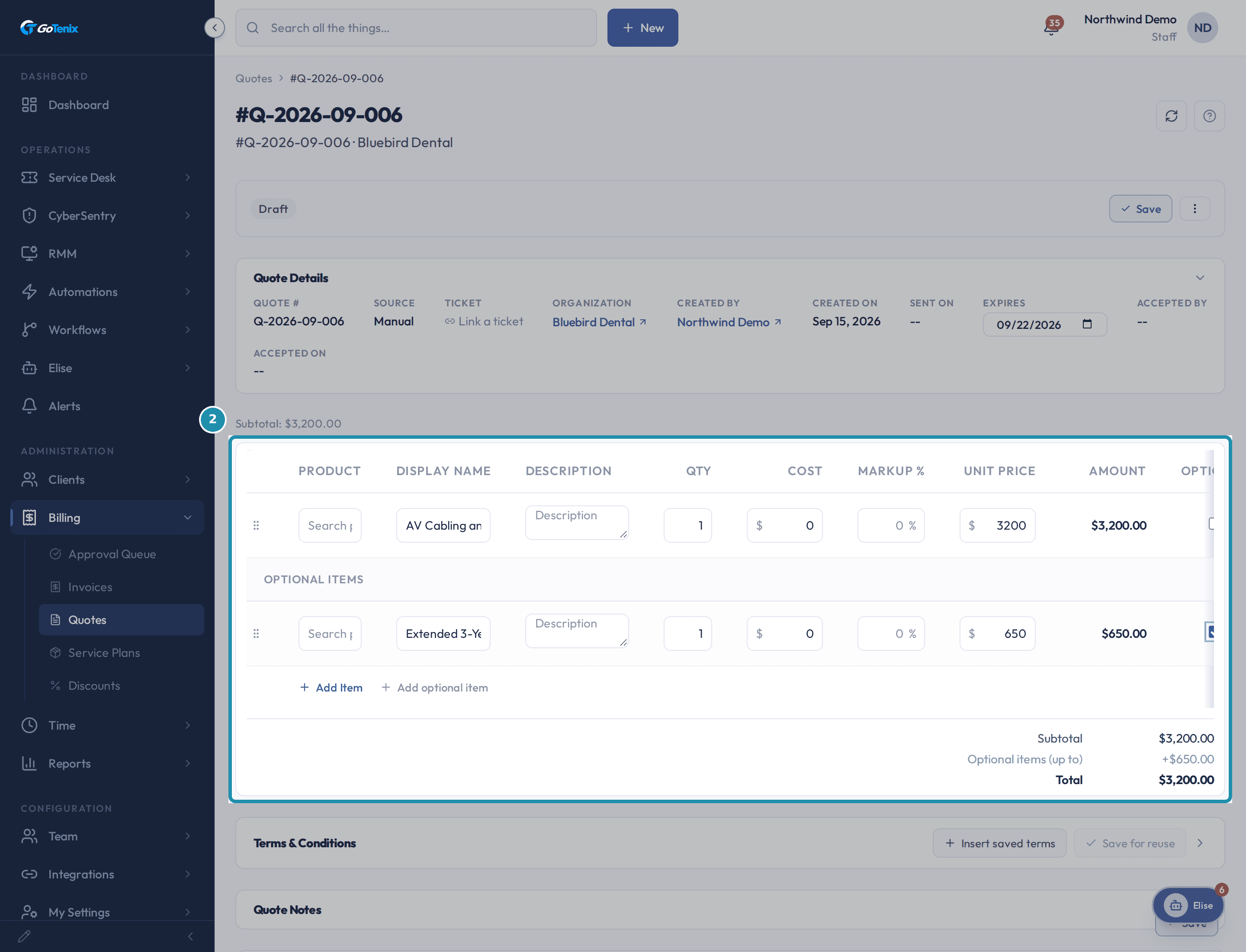
AV Cabling and Mounts is a normal line at $3,200 and counts toward the subtotal. Extended 3-Year Warranty at $650 was added with Add optional item instead of Add Item, which puts it under Optional Items and marks it optional. The totals show the difference: Subtotal $3,200, Optional items (up to) +$650, Total still $3,200. The optional line is priced but not yet owed.
Add a required line and an optional line. Add Terms & Conditions and Quote Notes.
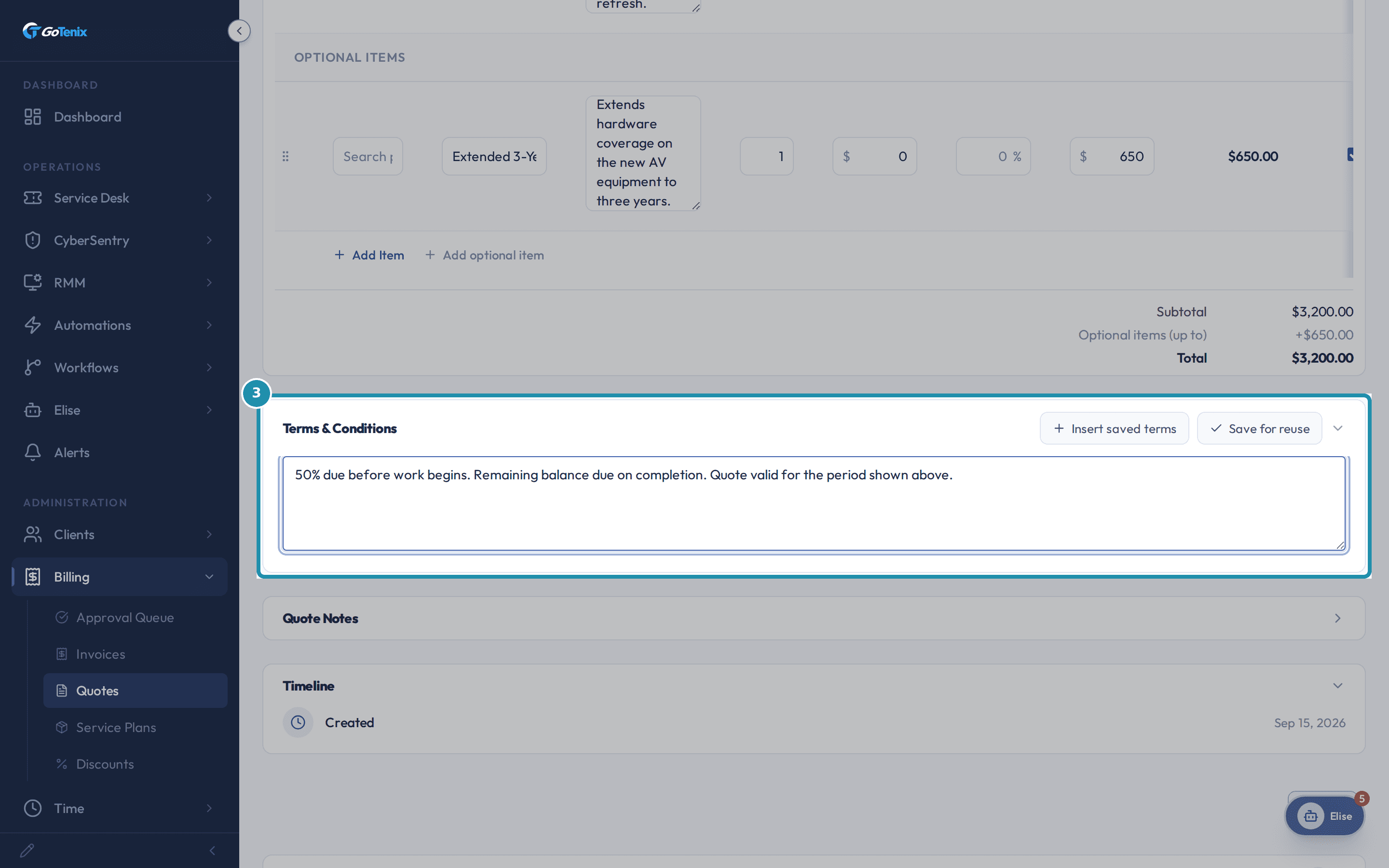
Payment terms typed in Terms & Conditions travel with the quote. Insert saved terms drops in text from a library shared across your team, and Save for reuse adds the terms on screen to it. Quote Notes sits in its own card below, for anything the client should read alongside the pricing. Both are shown to the client.
Add Terms & Conditions and Quote Notes. Send the quote.
Choose Send from the quote's Actions menu, check the Recipient Email and the Expiration date, and click Send Quote. The client gets an email with a public acceptance link. On the accept page they pick any optional items they want, tick the terms box if the quote has terms, and accept. By default the link stays valid for 7 days after sending, set by Quote Link Expiration (days) in your billing settings.
Offer more than one option with Compare.
Compare, in the quote's Actions menu, creates an alternative quote for the same job, such as a Budget Option or a Premium Package. Send Group sends all the options together. The client can accept only one.
Record a yes that came by phone or email.
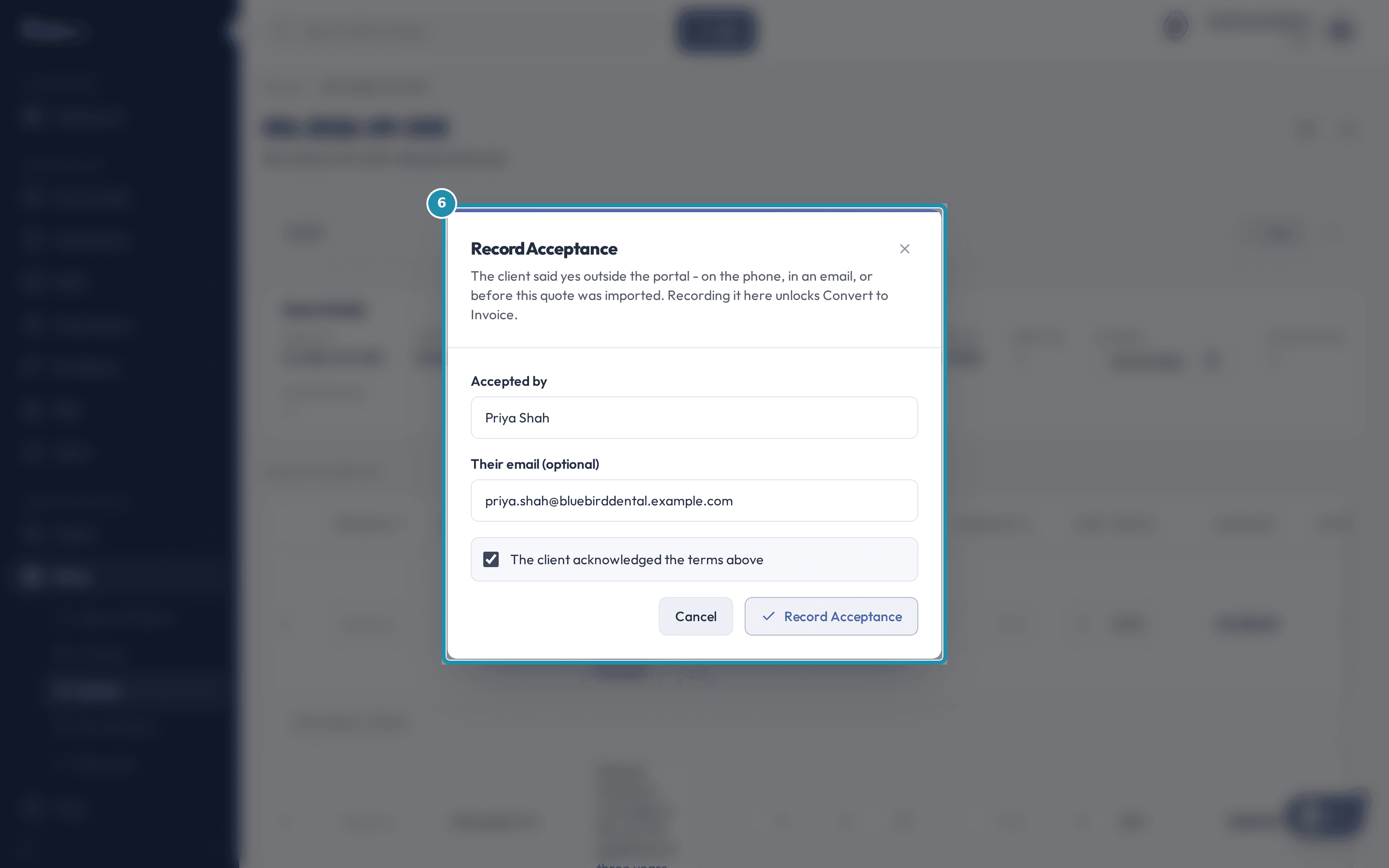
Priya Shah said yes by phone rather than through the accept link, so Actions > Mark Accepted opens Record Acceptance. It asks who gave the OK and, optionally, their email. If the quote has Terms & Conditions, a box must be ticked: The client acknowledged the terms above. Recording it counts as a real accept.
Record a yes that came by phone or email. See the invoice appear.
With the default setting the invoice is created for you. The quote moves to Converted, and the new invoice is in Billing > Invoices as Outstanding with Source Quote. Quote Details fills in Accepted By, Accepted On and, when the quote had terms, Terms Acknowledged. A banner on an accepted quote says it cannot be edited. The quote stays Accepted, with a Convert to Invoice button in its header, only when no invoice was made: you switched off Auto-Create Invoice on Quote Accept in your billing settings, or the quote had no lines to bill or came to $0 before discounts. In those last two cases, add a line or fix the amounts first, then convert.
Note: Only the required lines, plus any optional lines the client ticked, carry into the invoice.Open the invoice it made, or click Convert to Invoice if the quote is still Accepted.
The new invoice lands Outstanding with Source Quote. It carries the required lines, any optional lines the client ticked, and the quote's title, so the name stays the same from quote to invoice. In this example that is one line, AV Cabling and Mounts at $3,200.00. A quote that comes to $0 after discounts is settled as Paid instead of left open.
Read the four cards at the top of the Quotes list.
Pending shows the amount awaiting a response and how many quotes are still in draft. Pipeline is the total of open quotes, including tax. Accepted (30d) is the count and total accepted in the last 30 days. Expiring Soon counts Sent quotes expiring within 14 days.
What you will have
- Start a quote from a contact and let the client be set for you.
- Price a required line and an optional line, and see how each affects the total.
- Add Terms & Conditions and Quote Notes the client sees.
- Email the quote with an accept link, or offer comparison options.
- Record a yes that came by phone or email.
- See the accepted quote become an invoice, and know the setting that controls it.
- Read the four cards at the top of the Quotes list.
Why it works this way: How to quote a job, get the yes and invoice it
A required line and an optional line are priced the same way but behave differently after that. A required line always counts toward the total. An optional one sits below it as Optional items (up to), a plus amount that never touches the total on its own. It becomes real money only when the client picks it.
An invoice carries across the required lines plus any optional lines the client ticked. An optional line nobody ticked stays on the quote and nowhere else.
After a quote is accepted, the invoice normally already exists. The Auto-Create Invoice on Quote Accept setting is on by default, and it applies to a client's accept and to Record Acceptance alike. The quote moves to Converted and the invoice lands Outstanding with the accepted lines and tax. You still review it and press Send. Convert to Invoice is the manual path. It shows on an Accepted quote that has no invoice yet, which happens when you turned that setting off (billing settings, Approval & Sending), or when the quote has no lines to bill or adds up to $0 before discounts. In those last two cases, add a line or fix the amounts first, then convert. The button and Elise both stop at the same refusal until you do.
Source on a quote says where it came from: Manual when you built it by hand. The invoice it becomes shows Source Quote, or Ticket when the quote was built from a ticket. That is how a converted invoice is told apart from a plan invoice (Core) or one you typed (Manual).
Other ways to do this: How to quote a job, get the yes and invoice it
Ask Elise
To find things, ask her to "show every Sent quote and when it expires" or "list Bluebird Dental's quotes". To build one, tell her "quote Bluebird Dental $3,200 for AV cabling", then "email it to Priya" and "make a Budget option of that quote". After the client accepts, ask her to "show me the invoice for the accepted quote" and she finds it in the client's invoices. If the quote is still Accepted with no invoice, she can convert it for you, unless it has no lines to bill or adds up to $0 before discounts. She hits the same refusal as the button, so add a line or fix the amounts first. She can also change a quote's expiration date, terms and notes. Each change asks you to confirm first. Deleting a quote is filed for you to release with a typed reason.
A quote built from a ticket
Quotes can link to a ticket, and the invoice then shows Source Ticket.
If it did not work: How to quote a job, get the yes and invoice it
- If you cannot find Convert to Invoice, the invoice has probably been made already. Look in Billing > Invoices for source Quote, and check the quote reads Converted. The button shows only on an Accepted quote with no invoice yet: auto-create is off, or the quote had no lines to bill or added up to $0 before discounts, so nothing was created. Add a line or fix the amounts first, then convert.
- If an optional line is not on the invoice, that is expected unless the client ticked it. An unticked optional line stays priced on the quote and nowhere else.
- If Record Acceptance is greyed out and the quote has Terms & Conditions, tick the box The client acknowledged the terms above. The button unlocks once it is ticked.
Questions this page answers
How do I turn a quote into an invoice?
Open an accepted quote and click Convert to Invoice. The lines, amounts and prices come across. If the client ticked optional items, only the ones they ticked come over. Tax follows the client's own setup on their Billing > Tax tab. That means a QuickBooks tax code when an accounting system is connected, and your local rate when none is. So there is no single fixed rate. The new invoice's Source reads Quote. If the quote was tied to a ticket, it reads Ticket instead. The quote keeps the trail. Its Timeline reads Converted to Invoice, with the date and a link straight to the invoice it became, whether you pressed the button or the quote converted itself when the client accepted. The invoice does not link back to the quote; the audit log holds that side.
How do I create a new quote?
Open the Quotes tab and click New Quote. You can also start from a client's Billing tab. Search for the contact you are quoting. The client is set from that contact. Click Create Quote, then add your lines in the quote editor. To give the client a choice, use Compare in the quote's actions menu: that puts two or more quotes side by side on one link and the client picks whole. To offer extras on this quote, tick a line as Optional.
What do the four cards at the top of Quotes mean?
Pending counts Sent quotes. Those are the ones a customer still owes you an answer on. The line under it adds up what they are worth, and says how many quotes are still in draft. Drafts are not counted in Pending. Pipeline adds up what all open quotes are worth, Draft and Sent together. Every total here uses the taxed total when there is one, and the pre-tax amount when there is not. Accepted (30d) counts quotes accepted or converted in the last 30 days, with their total under it. Expiring Soon counts Sent quotes whose Expires date lands in the next 14 days. A client's Billing tab shows the same four cards on its Quotes tab, for that one client.
What is on this page?
This is one quote. The top row shows its status. Quote Details holds the number, the client, the dates and when it expires. Under that you build the lines, with a cost, a markup and a price on each one. Terms & Conditions and Quote Notes sit below the lines. Timeline shows when it was created, sent and answered.
What is an optional line?
A line can be marked Optional with the tick box at the end of its row. Optional lines are left out of the subtotal. They are listed under it as an amount the total could go up by. The client picks the ones they want on the accept page. Only the ones they tick come across when the quote becomes an invoice. The tick box is not there on a quote in a compare group.
How do optional line items work on a quote?
On a plain quote you can tick a line as Optional. Optional lines stay out of the quote total. They show on their own line as Optional items (up to), with a plus amount. Tax is still worked out with them counted in, so the client sees a real number if they take them. You cannot use optional lines on a quote that is in a comparison group: the client picks one of those quotes whole. On the accept page the client ticks the optional items they want. The total updates as they tick. They agree to exactly the items they picked.
What does the terms checkbox do in Record Acceptance?
Record Acceptance is how you log a yes that happened outside the portal. That covers a phone call, an email, or a quote that was already accepted before you imported it. If the quote carries terms, you must tick a box saying the client acknowledged the terms above. You cannot submit until you do. That tick is your word that the client really agreed. It stands in for the box they would have ticked themselves.
What does Convert to Invoice do?
It is the primary button on an accepted quote. It makes a new invoice from the lines and prices on this quote. Only the optional lines the client ticked come across. Tax follows the client's own tax setup, not a fixed rate. The quote's Timeline then reads Converted to Invoice, with the date and a link to the invoice it made. The same row appears on a quote that converted itself when the client accepted. The invoice does not link back to the quote; the audit log holds that side.
Was this helpful?